 Corixa
 SafeRag
Installation Guide
Download and install SafeRag on your Mac in just a few minutes. This guide covers system requirements, downloading, and initial setup.
System Requirements
Before installing SafeRag, ensure your Mac meets the following requirements:
| Component | Requirement |
|---|---|
| macOS | macOS 14.0 (Sonoma) or later |
| Processor | Apple Silicon (M1/M2/M3/M4) required |
| RAM | 8 GB minimum (16 GB recommended) |
| Storage | 5 GB free space (more for AI models) |
| Network | Internet for initial model download |
Download SafeRag
SafeRag is distributed as a notarized DMG file for easy installation.
Download the DMG
Visit the SafeRag download page and click the download button. The DMG file will begin downloading automatically.
Open the DMG
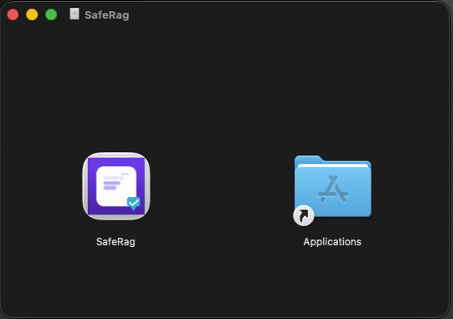
Once downloaded, double-click the SafeRag.dmg file to mount it. A new Finder window will open showing the SafeRag application.
Drag to Applications
Drag the SafeRag icon to your Applications folder. You can also drag it to your Dock for quick access.
First Launch
The first time you launch SafeRag, macOS will verify the app. This is normal for apps downloaded outside the App Store.
Open SafeRag
Open your Applications folder and double-click SafeRag, or use Spotlight (Cmd + Space) and type "SafeRag".
Allow the App
If macOS shows a security dialog, click Open to confirm you want to run the app. SafeRag is notarized by Apple, so you should see a standard open dialog.
Begin Onboarding
SafeRag will start the onboarding process to help you set up Ollama and configure your account. See Onboarding for details.
How SafeRag Works
SafeRag runs AI models entirely on your Mac. Everything is bundled - there's nothing extra to install or configure.
What Happens Behind the Scenes
- Bundled AI Engine - SafeRag includes everything needed to run AI models locally
- Model Management - Download and manage models directly within the app
- 100% Local - All processing happens on your Mac, nothing goes to the cloud
Uninstalling SafeRag
To remove SafeRag from your Mac:
Quit SafeRag
Make sure SafeRag is not running. Right-click the Dock icon and select Quit, or use Cmd + Q.
Delete the App
Open your Applications folder, find SafeRag, and drag it to the Trash. Alternatively, right-click and select Move to Trash.
Remove Data (Optional)
To completely remove all SafeRag data including chat history and documents, delete the following folder:
~/Library/Application Support/SafeRagNext Steps
Now that SafeRag is installed, continue to the onboarding guide to complete setup: