 Corixa
 SafeRag
AI Models
SafeRag uses Ollama to run AI models locally on your Mac. Learn how to download, manage, and choose the right models for your needs.
About AI Models
AI models are the "brains" behind SafeRag's chat capabilities. Each model has different strengths:
- Size - Larger models are generally smarter but slower and require more RAM
- Type - Chat models for conversation, embedding models for document search
- Specialty - Some models excel at coding, others at creative writing
Accessing the Models Section
Open the Models section from the sidebar or press Cmd + M.
The Models section has two tabs:
- Installed Models - Models downloaded and ready to use
- Available Models - Models you can download
Installed Models
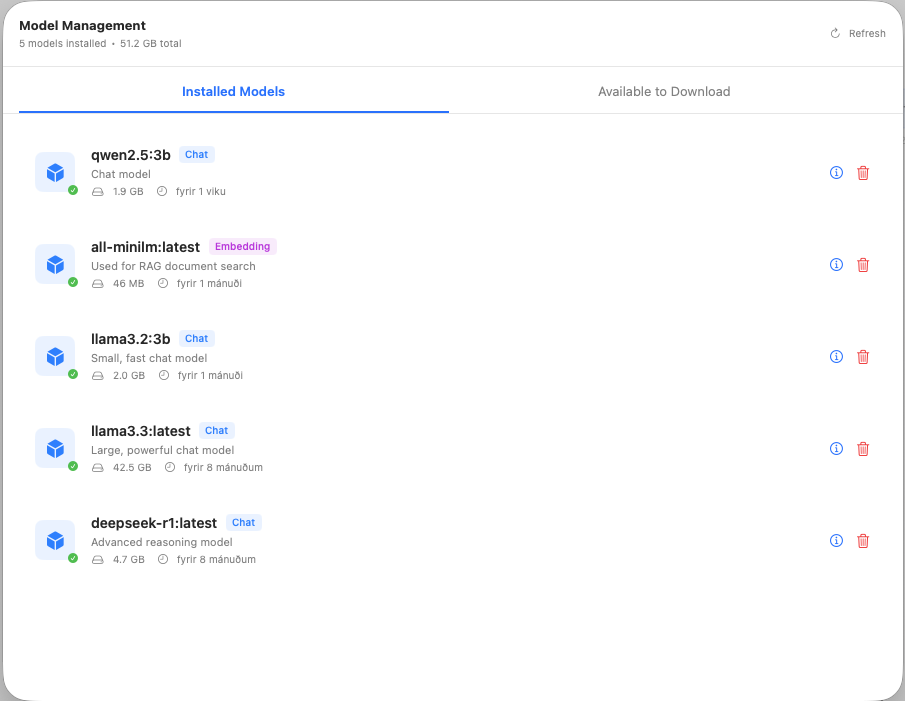
The Installed Models tab shows all models currently downloaded on your Mac.
Model Information
For each installed model, you'll see:
- Name - The model identifier (e.g., llama3.2:3b)
- Size - Storage space used
- Date - When it was downloaded
- Type Badge - Chat model or Embedding model
Removing Models
To free up disk space, you can remove models you no longer need:
- Select the model in the list
- Click the Uninstall button
- Confirm the removal
Available Models
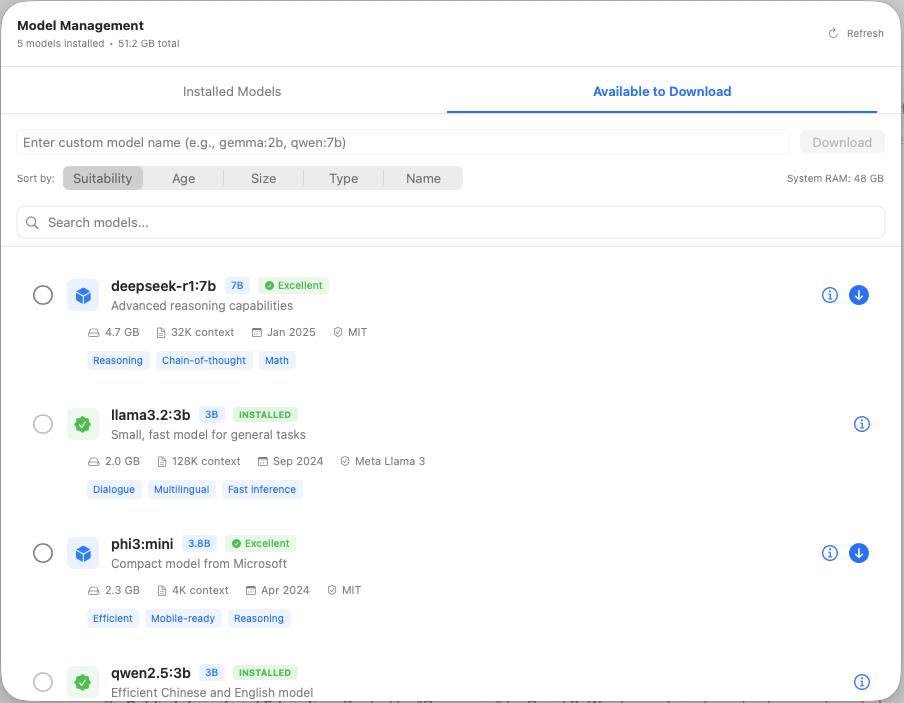
The Available Models tab shows a curated list of recommended models.
Model Suitability
SafeRag analyzes your Mac's specs and shows suitability scores:
- Green - Excellent match for your system
- Yellow - May work but could be slow
- Red - Too large for your available RAM
Filtering and Sorting
Use the controls to find the right model:
- Search - Filter by model name
- Sort by - Suitability, Age, Size, Type, or Name
Downloading Models
Find a Model
Browse the Available Models tab or search for a specific model.
Click Download
Click the Download button next to the model you want.
Wait for Download
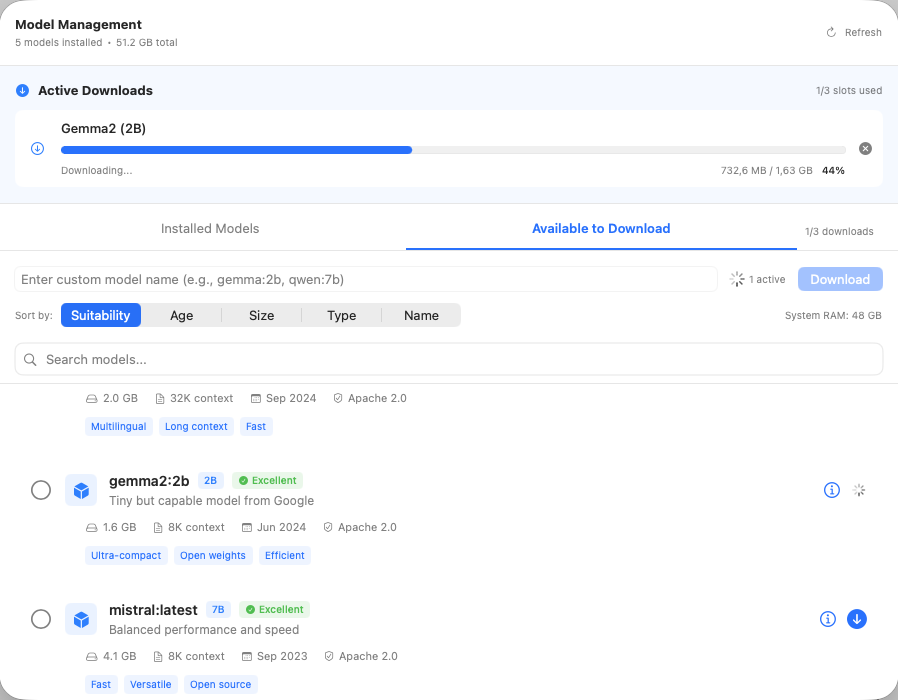
A progress bar shows download status. Large models may take several minutes.
Start Using
Once downloaded, the model appears in your Installed Models and is available in the model picker.
Custom Model Names
When downloading, you can optionally enter a custom model name. This is useful for downloading specific versions or quantizations from Ollama's library.
Recommended Models
Here are some popular choices based on use case:
General Purpose
| Model | Size | Best For |
|---|---|---|
| Llama 3.2 3B | ~2 GB | Fast responses, 8GB RAM Macs |
| Llama 3.1 8B | ~5 GB | Balanced speed and quality |
| Mistral 7B | ~4 GB | Efficient, good all-around |
| Gemma 2 9B | ~5 GB | Google's quality model |
Coding
| Model | Size | Best For |
|---|---|---|
| CodeLlama 7B | ~4 GB | Code generation and explanation |
| DeepSeek Coder | ~4 GB | Multi-language coding |
Reasoning
| Model | Size | Best For |
|---|---|---|
| DeepSeek R1 | Varies | Extended thinking, complex problems |
| Qwen 2.5 | Varies | Strong reasoning capabilities |
Embedding Models
| Model | Size | Best For |
|---|---|---|
| nomic-embed-text | ~275 MB | Document embeddings for RAG |
| mxbai-embed-large | ~670 MB | Higher quality embeddings |
Understanding Model Types
Chat Models
Generate text responses. Used for conversations, writing, coding, and answering questions.
Embedding Models
Convert text to numerical vectors. Used for document search in RAG mode. Smaller and faster.
Switching Models
You can switch models at any time during a chat session:
- Click the model name in the toolbar
- Select a different model from the dropdown
- Continue chatting with the new model
Storage Considerations
AI models can be large. Here are some storage tips:
- Check available space before downloading large models
- Remove unused models to free up space
- Smaller quantizations (like Q4) use less space but may reduce quality slightly
Models are stored in Ollama's data directory:
~/.ollama/models