 Corixa
 SafeRag
Admin Guide Pro
Learn how to manage users, roles, and administer SafeRag in Multi-User mode.
Multi-User Mode Overview
Multi-User mode enables multiple people to use SafeRag on the same Mac with separate accounts. This is ideal for:
- Families sharing a home computer
- Teams sharing a workstation
- Security-conscious users who want account separation
- Organizations requiring user accountability and audit trails
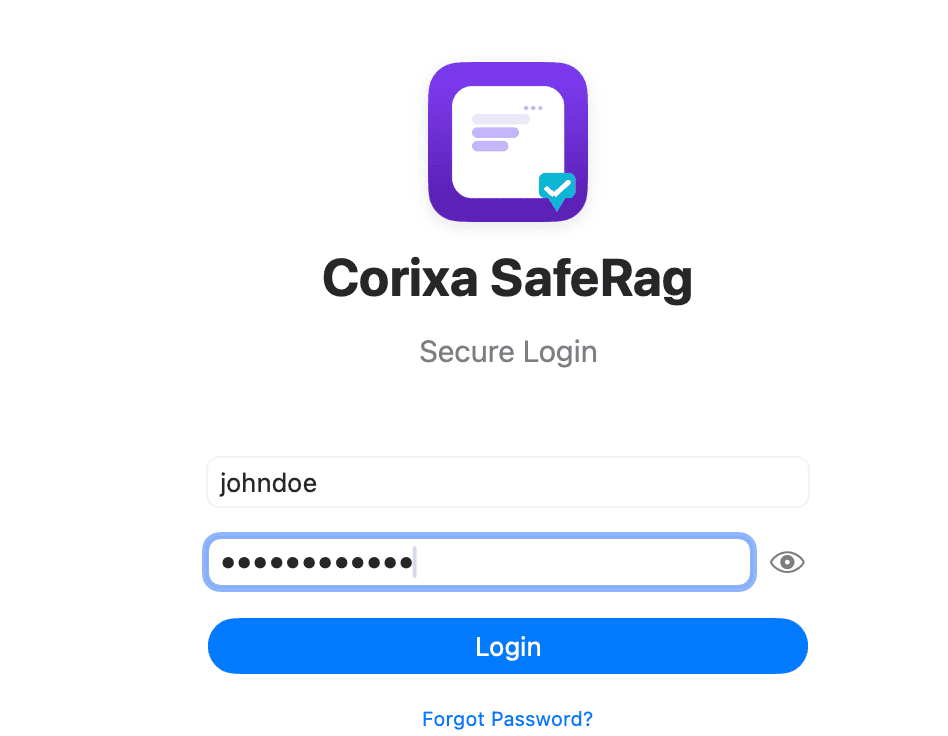
Login Screen
In Multi-User mode, users are greeted with a login screen where they enter their credentials:
User Limits
| Plan | Maximum Users |
|---|---|
| Free | 1 user (Single User mode) |
| Pro | Up to 5 users |
User Roles
SafeRag uses role-based access control (RBAC) with two roles:
Admin
Full access to all features including user management, compliance settings, and system configuration.
User
Standard access to chat, documents, and models. Cannot manage other users or access admin features.
Role Permissions
| Feature | Admin | User |
|---|---|---|
| Chat & Sessions | ✅ | ✅ |
| Upload Documents | ✅ | ✅ |
| Manage Models | ✅ | ✅ |
| View Compliance | ✅ | ✅ |
| Create Users | ✅ | ❌ |
| Delete Users | ✅ | ❌ |
| Change Roles | ✅ | ❌ |
| Reset Passwords | ✅ | ❌ |
| View Audit Logs | ✅ | ❌ |
| Export All Data | ✅ | ❌ |
Admin Panel
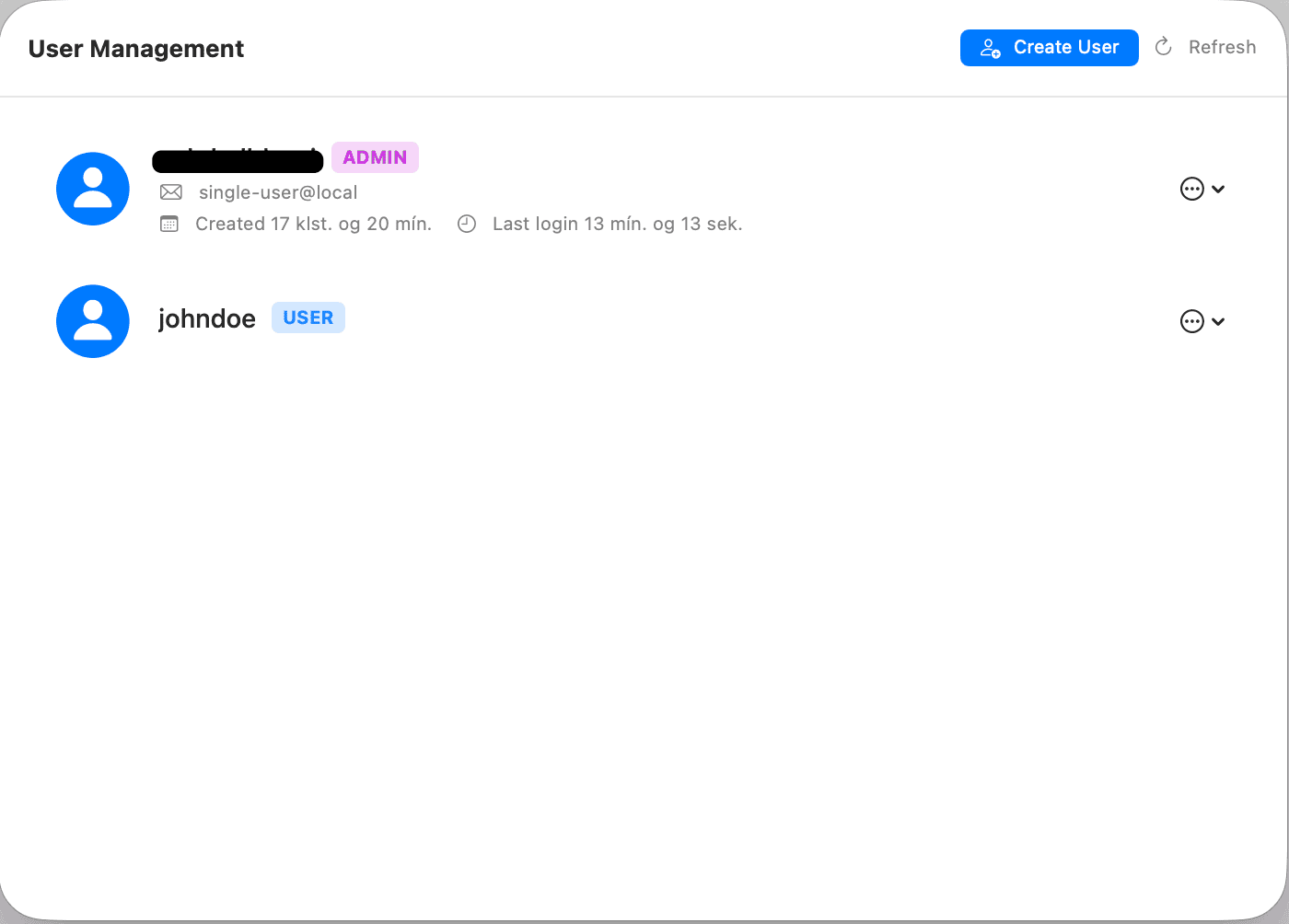
The Admin Panel is where you manage users and access admin-only features.
Accessing the Admin Panel
As an admin, you'll see an Admin section in the sidebar. Click it to access the Admin Panel.
Creating Users
Open Admin Panel
Navigate to the Admin section from the sidebar.
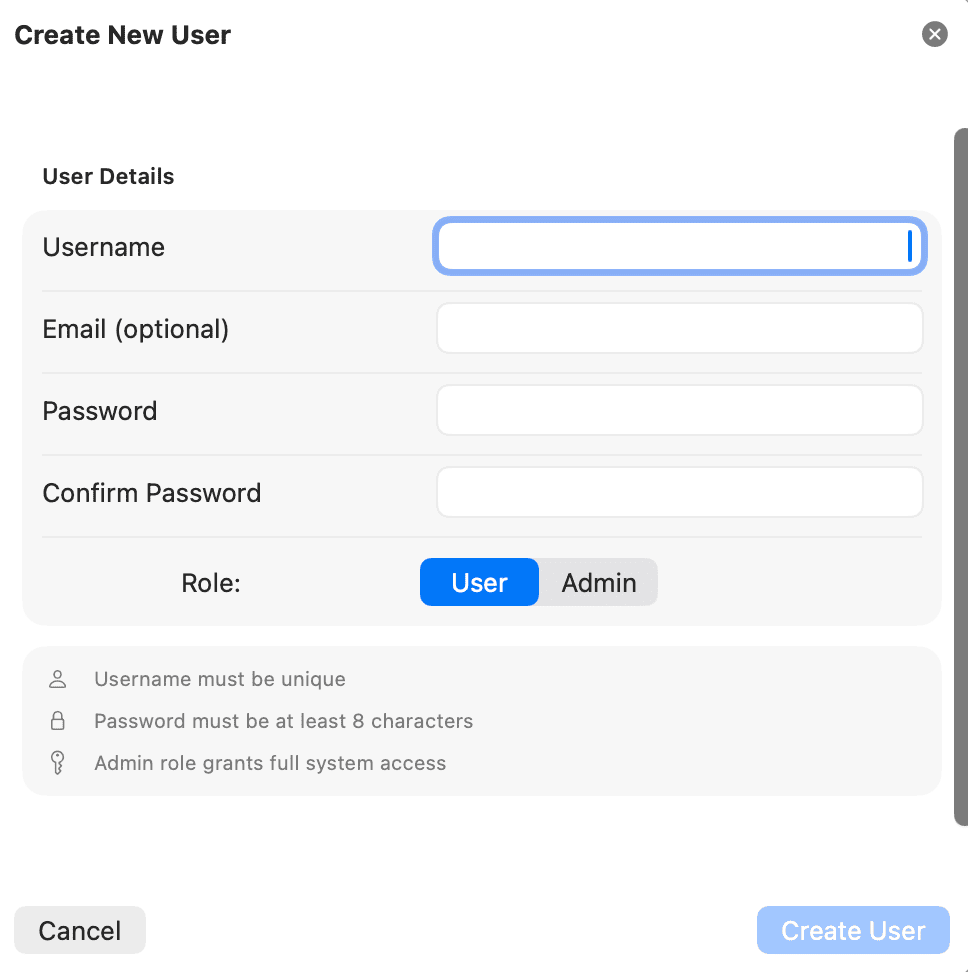
Click Create User
Click the Create User button.
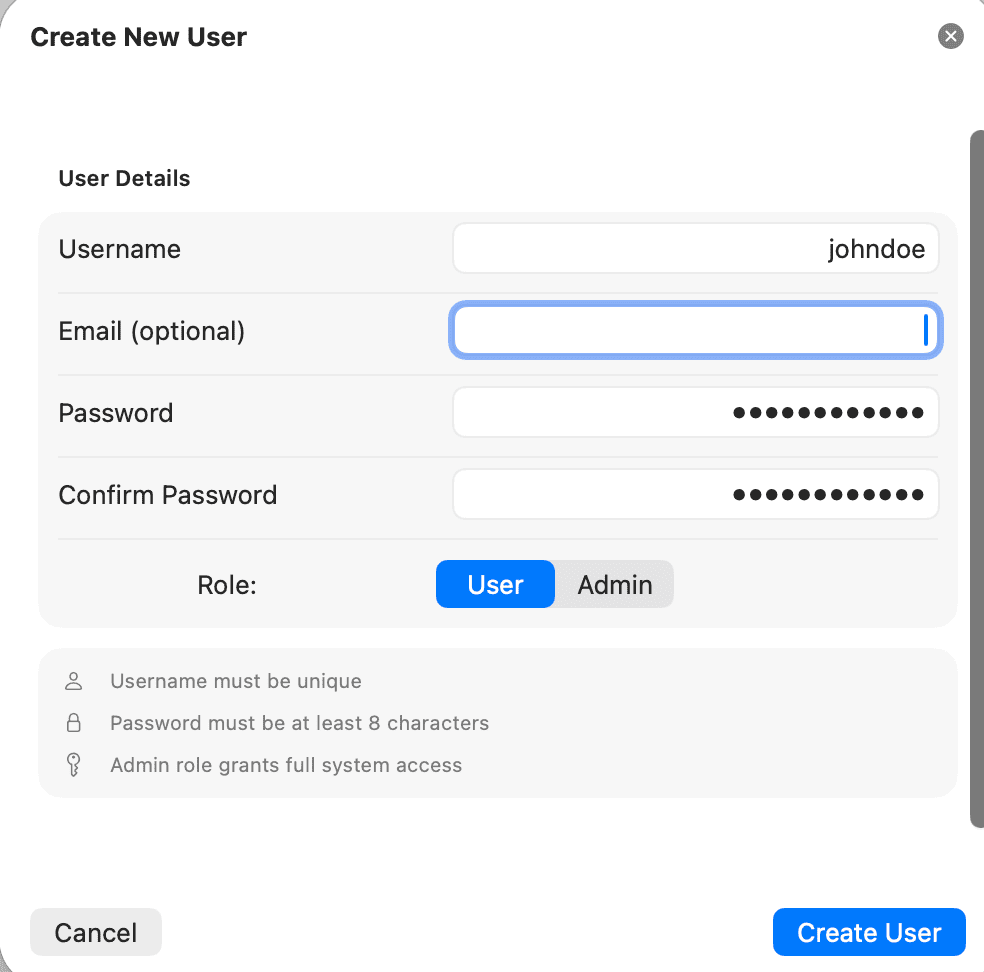
Enter User Details
Fill in the required information:
- Username - Unique identifier
- Email - Optional, for account recovery
- Password - Initial password
- Role - Admin or User
Save User
Click Create to add the user. Share the credentials securely with the new user.
Managing Existing Users
Changing User Roles
To promote a user to admin or demote an admin to user:
- Find the user in the Admin Panel
- Click the role dropdown or edit button
- Select the new role
- Confirm the change
Resetting Passwords
If a user forgets their password and doesn't have recovery codes:
- Find the user in the Admin Panel
- Click Reset Password
- Enter a new temporary password
- Share the new password securely with the user
Deleting Users
To remove a user account:
- Find the user in the Admin Panel
- Click the Delete button
- Confirm the deletion
Logging Out & Switching Users
To log out and switch to a different user account, click your username in the sidebar footer and select Logout:
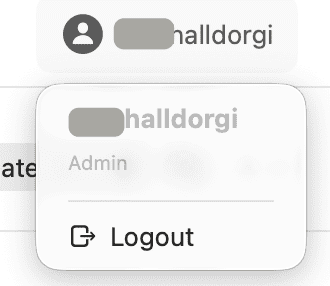
After logging out, you'll be returned to the login screen where another user can sign in with their credentials.
First Admin Setup
During onboarding in Multi-User mode, the first user automatically becomes an admin. This ensures someone can manage the system from the start.
Initial Admin Responsibilities
- Create additional user accounts
- Configure system settings
- Set up retention policies
- Enable backups
Data Isolation
In Multi-User mode, each user's data is isolated:
| Data Type | Isolation |
|---|---|
| Chat Sessions | User-specific - only visible to owner |
| Uploaded Documents | User-specific - only visible to owner |
| Settings | Some user-specific, some system-wide |
| AI Models | Shared - all users access the same models |
Admin Best Practices
Switching to Multi-User Mode
If you started in Single User mode and want to switch:
Open Settings
Press Cmd + , to open Settings.
Go to General
Navigate to the General tab.
Change User Mode
Select Multi-User from the User Mode option.
Complete Setup
You may need to set up your admin account credentials if not already configured.