 Corixa
 SafeRag
Chat Interface
Learn how to use SafeRag's chat interface, manage sessions, and make the most of different chat modes.
Interface Overview
The SafeRag interface is divided into several key areas:
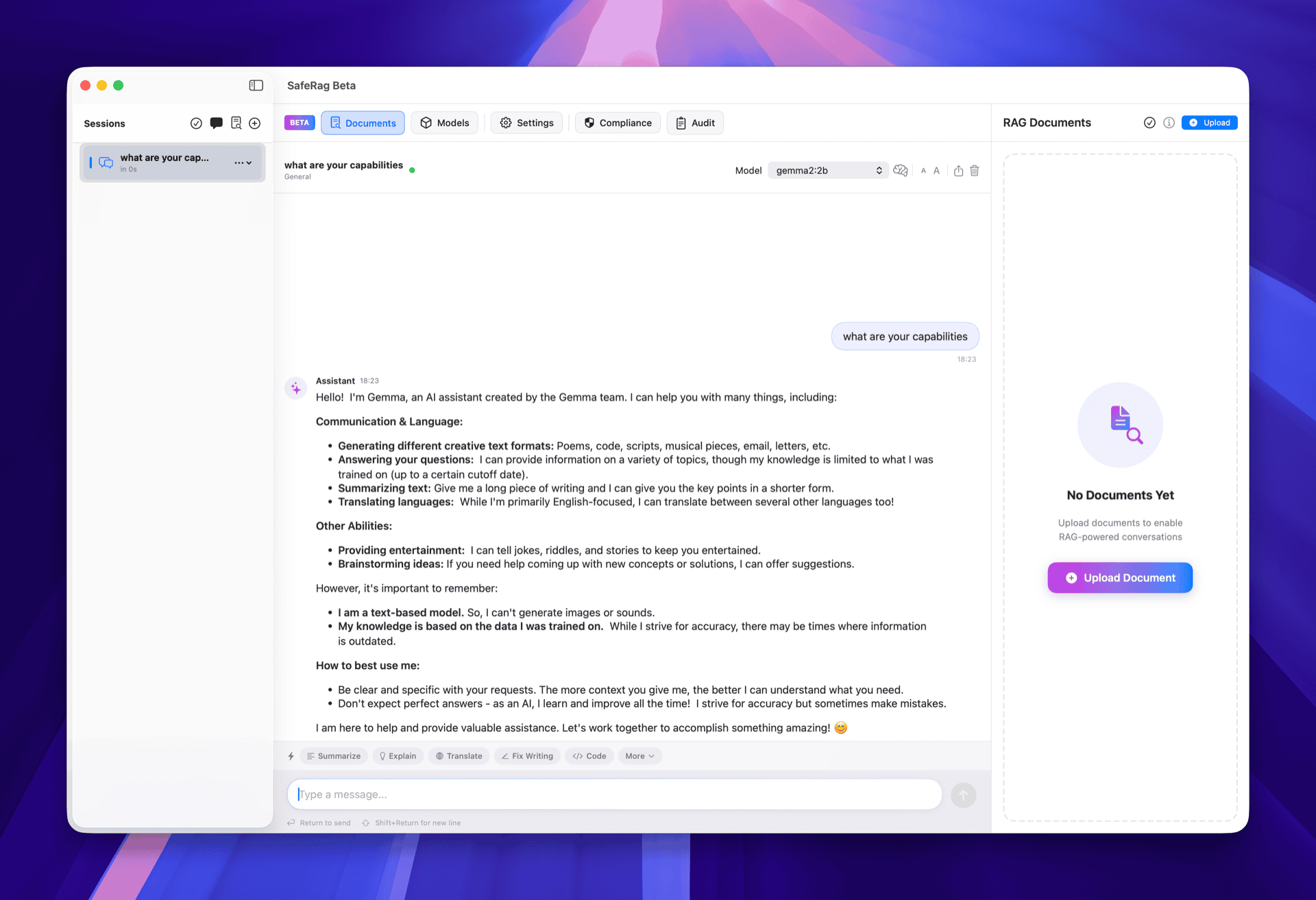
Key Areas
- Sidebar (Left) - Session list, new session button, navigation to other sections
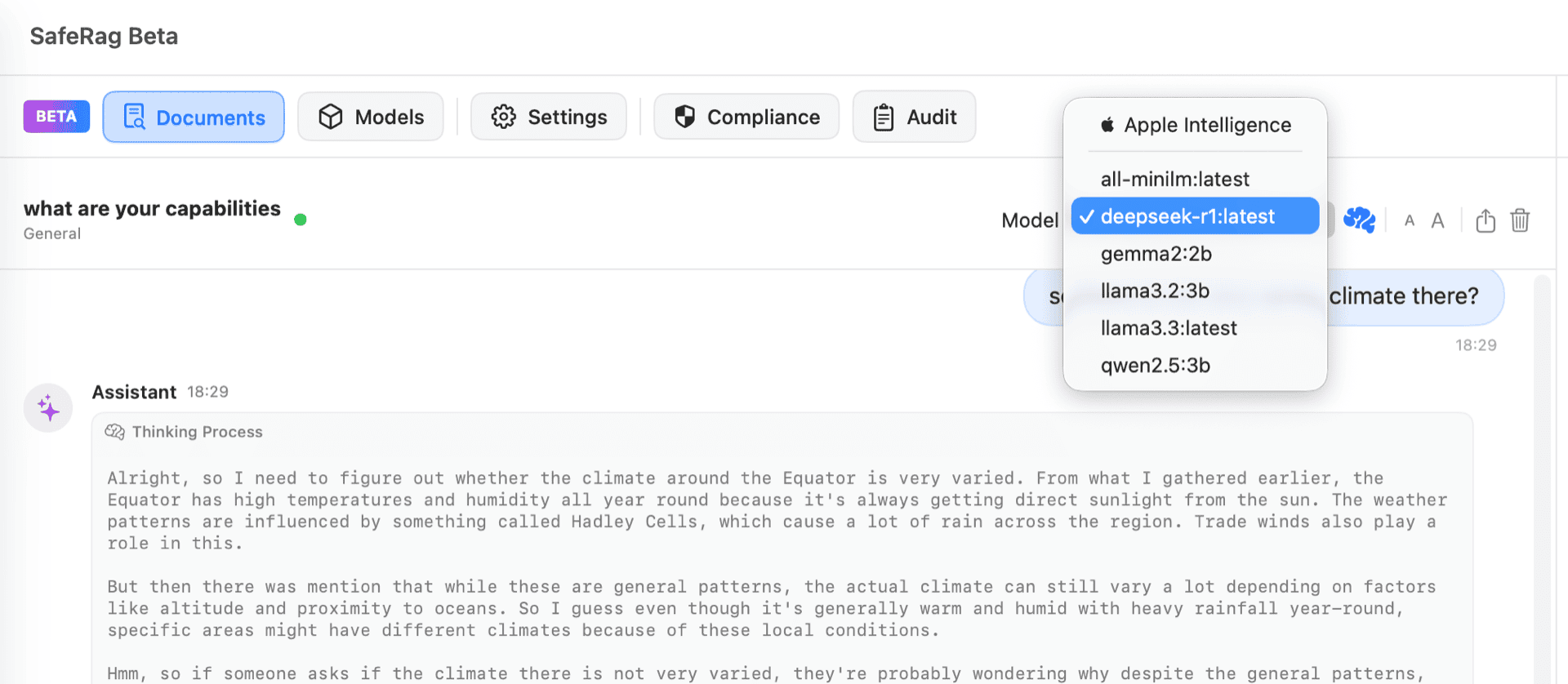
- Toolbar (Top) - Model picker, thinking mode toggle, font controls
- Chat Area (Center) - Message history and input field
- Status Bar - Connection status, trial information
Managing Sessions
Sessions are separate conversations that keep your chat history organized. Each session maintains its own context and settings.
Creating a New Session
Click the + button in the sidebar or use Cmd + N to create a new session.
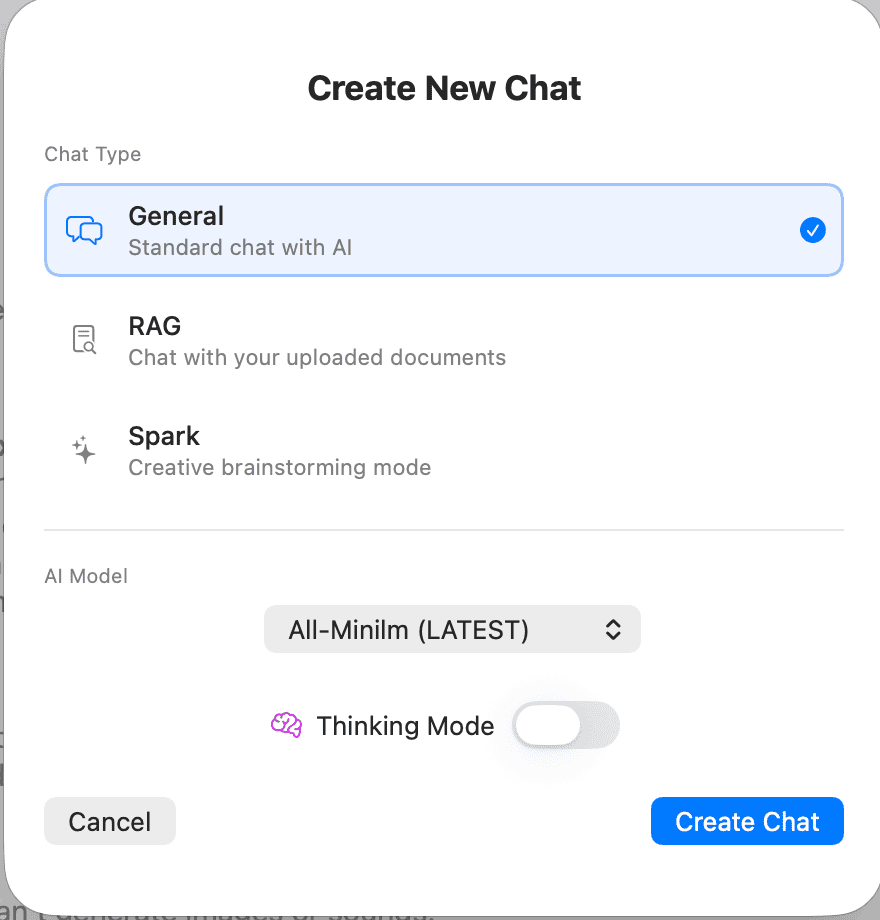
When creating a session, you can configure:
- Session Name - A descriptive name for the conversation
- Mode - General, RAG, or Spark mode
- Model - Which AI model to use
- Thinking Mode - Enable to see the AI's reasoning process
Switching Sessions
Click any session in the sidebar to switch to it. Your last selected session is automatically restored when you reopen SafeRag.
Renaming Sessions
Right-click a session and select Rename, or double-click the session name in the sidebar.
Deleting Sessions
Right-click a session and select Delete. You can also select multiple sessions using checkboxes for bulk deletion.
Chat Modes
SafeRag offers three chat modes, each optimized for different use cases:
General Mode
Standard AI conversations for everyday tasks like writing, coding, brainstorming, and questions.
RAG Mode
Chat with your uploaded documents. The AI searches your documents and uses relevant content in responses.
Spark Mode
Creative mode with higher temperature for brainstorming, creative writing, and exploratory conversations.
Changing Modes
You set the mode when creating a session. To use a different mode, create a new session with your preferred mode.
Sending Messages
Type your message in the input field at the bottom of the chat area:
Type Your Message
Enter your question or request in the text field. Press Enter to send, or Shift + Enter for a new line.
Wait for Response
The AI processes your message locally and streams the response in real-time. You'll see the text appear as it's generated.
Continue the Conversation
The AI remembers the conversation context, so you can ask follow-up questions naturally.
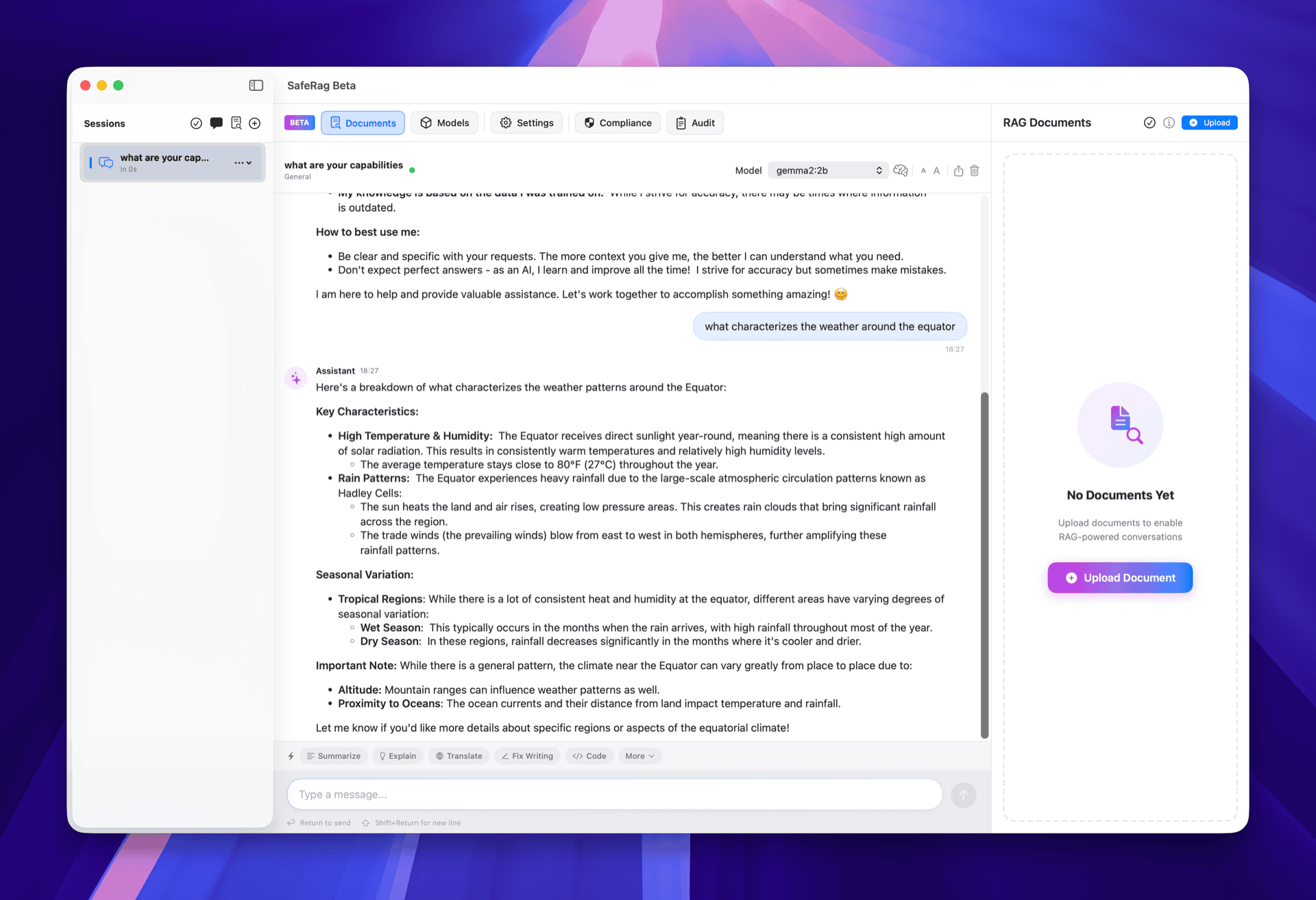
Stopping Generation
If the AI is generating a long response, you can click the Stop button (or press Esc) to halt generation immediately.
Thinking Mode
Thinking Mode reveals the AI's reasoning process before it gives an answer. This is useful for:
- Understanding how the AI arrives at conclusions
- Debugging complex problems
- Learning from the AI's approach
Enabling Thinking Mode
Toggle the Thinking button in the toolbar, or enable it when creating a new session.
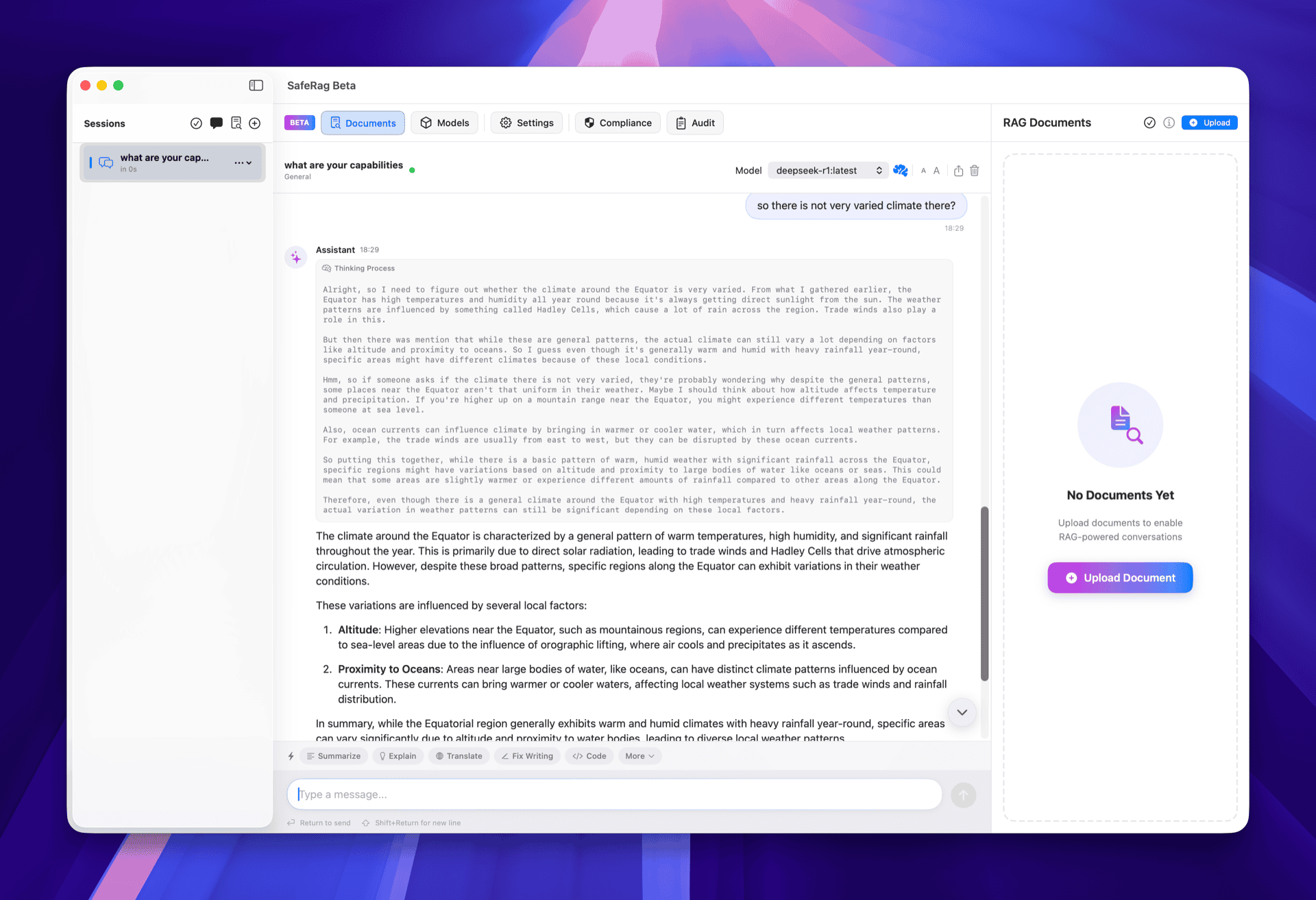
Toolbar Features
Model Picker
Click the model name in the toolbar to switch between your installed models. The current model name is always visible.
Font Size Controls
Adjust the chat text size using the A- and A+ buttons in the toolbar, or use:
- Cmd + + to increase font size
- Cmd + - to decrease font size
Scroll to Bottom
When viewing older messages, click the Scroll to Bottom button (or press Cmd + End) to jump to the latest message.
Keyboard Shortcuts
SafeRag supports these keyboard shortcuts for efficient navigation:
| Shortcut | Action |
|---|---|
| Cmd + N | New session |
| Cmd + D | Go to Documents |
| Cmd + M | Go to Models |
| Cmd + , | Open Settings |
| Cmd + + | Increase font size |
| Cmd + - | Decrease font size |
| Enter | Send message |
| Shift + Enter | New line in message |
| Esc | Stop generation |