 Corixa
 SafeRag
Settings
Configure SafeRag to match your preferences. Access Settings from the menu bar or press Cmd + , .
Settings Overview
SafeRag settings are organized into several tabs:
- General - User mode and basic preferences
- Appearance - Theme and visual settings
- Retention - Data retention policies
- Backup - Automatic backup configuration
- Privacy - Privacy and data controls
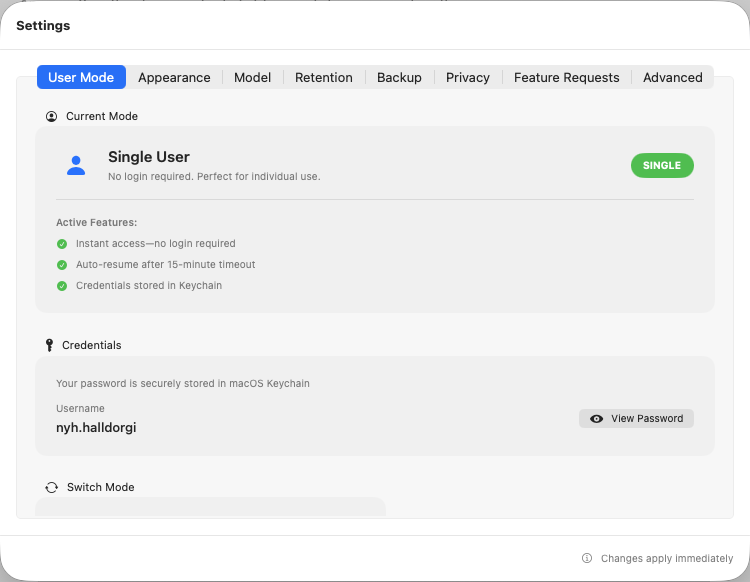
General Settings
User Mode
Switch between Single User and Multi-User mode:
| Mode | Description |
|---|---|
| Single User | Simplified experience for individual use. No login required after setup. |
| Multi-User | For families and teams sharing a computer, or security-conscious users. Separate accounts with login required. |
Appearance Settings
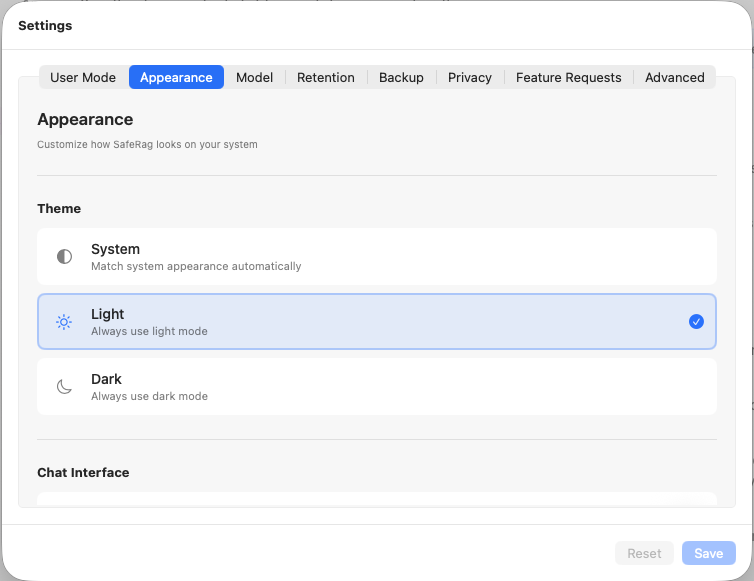
Customize how SafeRag looks on your Mac.
Theme
Choose your preferred color scheme:
Light
Bright interface with light backgrounds. Best for well-lit environments.
Dark
Dark interface that's easier on the eyes at night. Reduces eye strain.
System
Automatically matches your Mac's appearance setting. Changes with system preferences.
Retention Settings
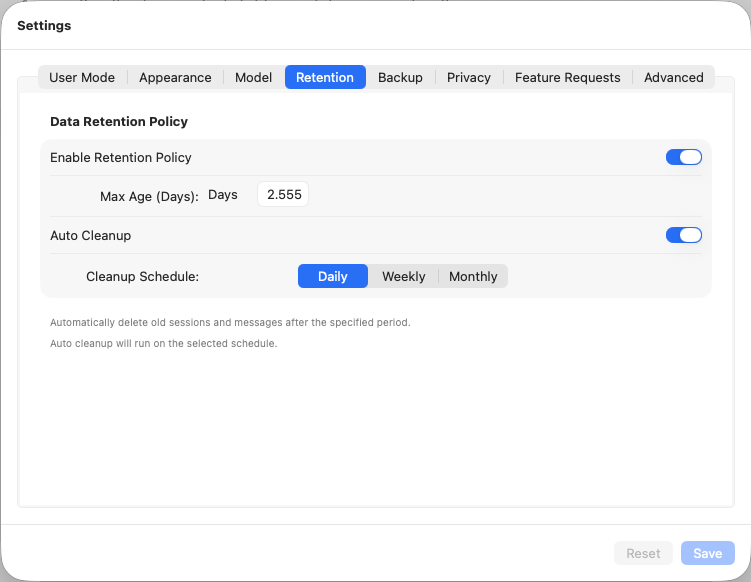
Configure how long SafeRag keeps your chat history and data.
Retention Policy
When enabled, old chat sessions are automatically deleted based on your settings:
| Setting | Description |
|---|---|
| Enable Retention | Toggle automatic deletion of old data |
| Max Age (Days) | How many days to keep chat sessions (e.g., 30, 90, 365) |
| Auto Cleanup | Enable automatic cleanup when sessions expire |
| Schedule | How often to run cleanup: Daily, Weekly, or Monthly |
Backup Settings
Protect your data with automatic backups.
Automatic Backups
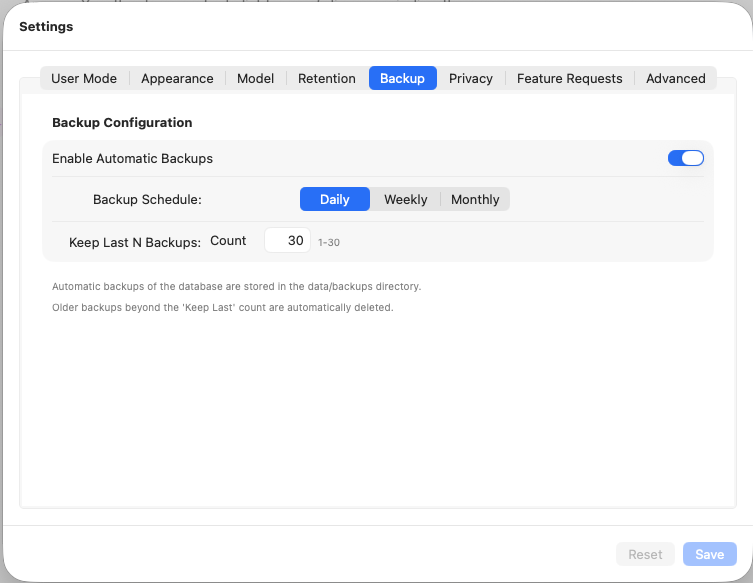
When enabled, SafeRag creates regular backups of your data:
| Setting | Description |
|---|---|
| Enable Backups | Toggle automatic backups on/off |
| Schedule | How often to create backups: Daily, Weekly, or Monthly |
| Keep Backups | Number of backup copies to retain (e.g., 5, 10, 20) |
What Gets Backed Up
- Chat sessions and message history
- Uploaded documents and embeddings
- User accounts and settings
- Audit logs
Backup Location
Backups are stored in:
~/Library/Application Support/SafeRag/BackupsPrivacy Settings
Control how SafeRag handles your privacy.
Crash Reporting
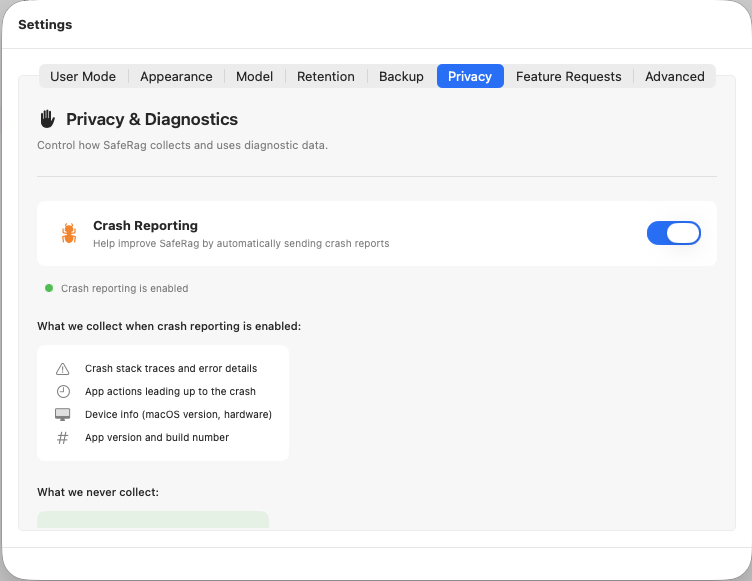
Optionally share crash reports to help improve SafeRag:
- Enabled - Anonymized crash data is sent to help diagnose issues
- Disabled - No data is sent, complete privacy
Default Model Settings
Set your preferred default model for new chat sessions.
When you create a new session, this model will be pre-selected. You can always change it per-session.
License Settings
Manage your SafeRag Pro license:
Entering a License Key
Open Settings
Press Cmd + , or go to SafeRag > Settings.
Find License Section
Look for the license or subscription section.
Enter Your Key
Paste your license key and click Activate.
Trial Status
If you're on the free trial, the trial banner shows:
- Time remaining in your trial
- Button to enter a license key