Corixa
 SafeRag
RAG & Documents
Upload your documents and chat with them using RAG (Retrieval-Augmented Generation). SafeRag finds relevant content from your documents to provide context-aware responses.
What is RAG?
RAG (Retrieval-Augmented Generation) is a technique that enhances AI responses by retrieving relevant information from your documents before generating an answer.
How It Works
Upload Documents
Add your documents to SafeRag. They're processed and stored locally as vector embeddings.
Ask Questions
In RAG mode, ask questions related to your documents.
Retrieval
SafeRag searches your documents for relevant sections using semantic similarity.
Enhanced Response
The AI uses the retrieved content as context to provide accurate, document-based answers.
Supported Document Types
SafeRag can process the following file types:
| Type | Extensions | Notes |
|---|---|---|
| Text-based PDFs. Scanned PDFs require OCR. | ||
| Plain Text | .txt | Any plain text file |
| Markdown | .md | Markdown documents |
| Images | .png, .jpg, .jpeg | For visual context (with compatible models) |
Uploading Documents
Access the Documents section from the sidebar or press Cmd + D.
Method 1: Click to Upload
Click the Upload Documents button and select files from the file picker.
Method 2: Drag and Drop
Drag files directly onto the Documents area to upload them.
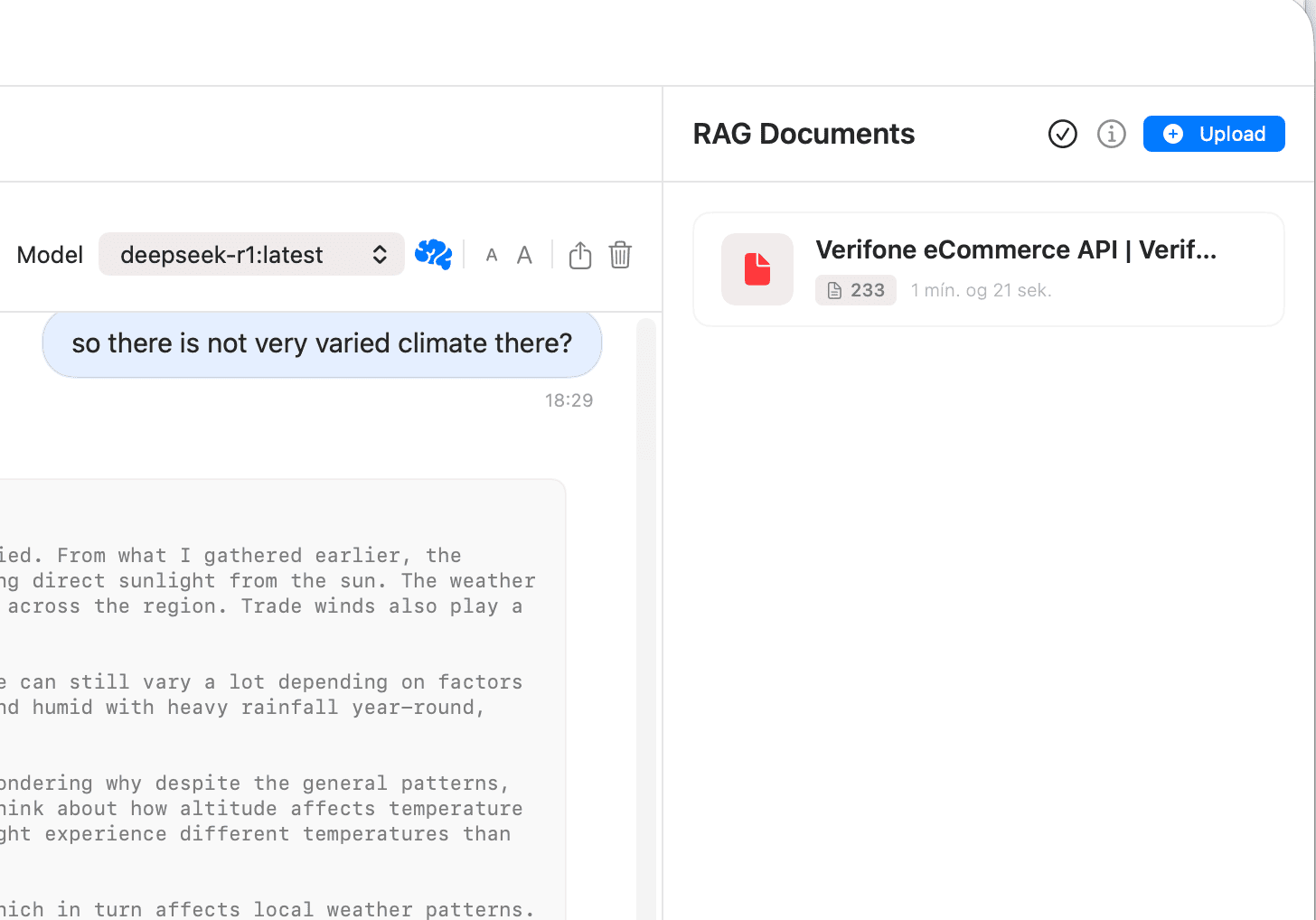
Upload Process
When you upload a document:
- The file is copied to SafeRag's local storage
- Text is extracted from the document
- The text is split into chunks
- Each chunk is converted to a vector embedding
- The document appears in your list
Document Limits
| Plan | Document Limit |
|---|---|
| Free | 5 documents |
| Pro Pro | Unlimited documents |
The free plan allows up to 5 documents. To upload more, upgrade to SafeRag Pro.
Managing Documents
Viewing Document Details
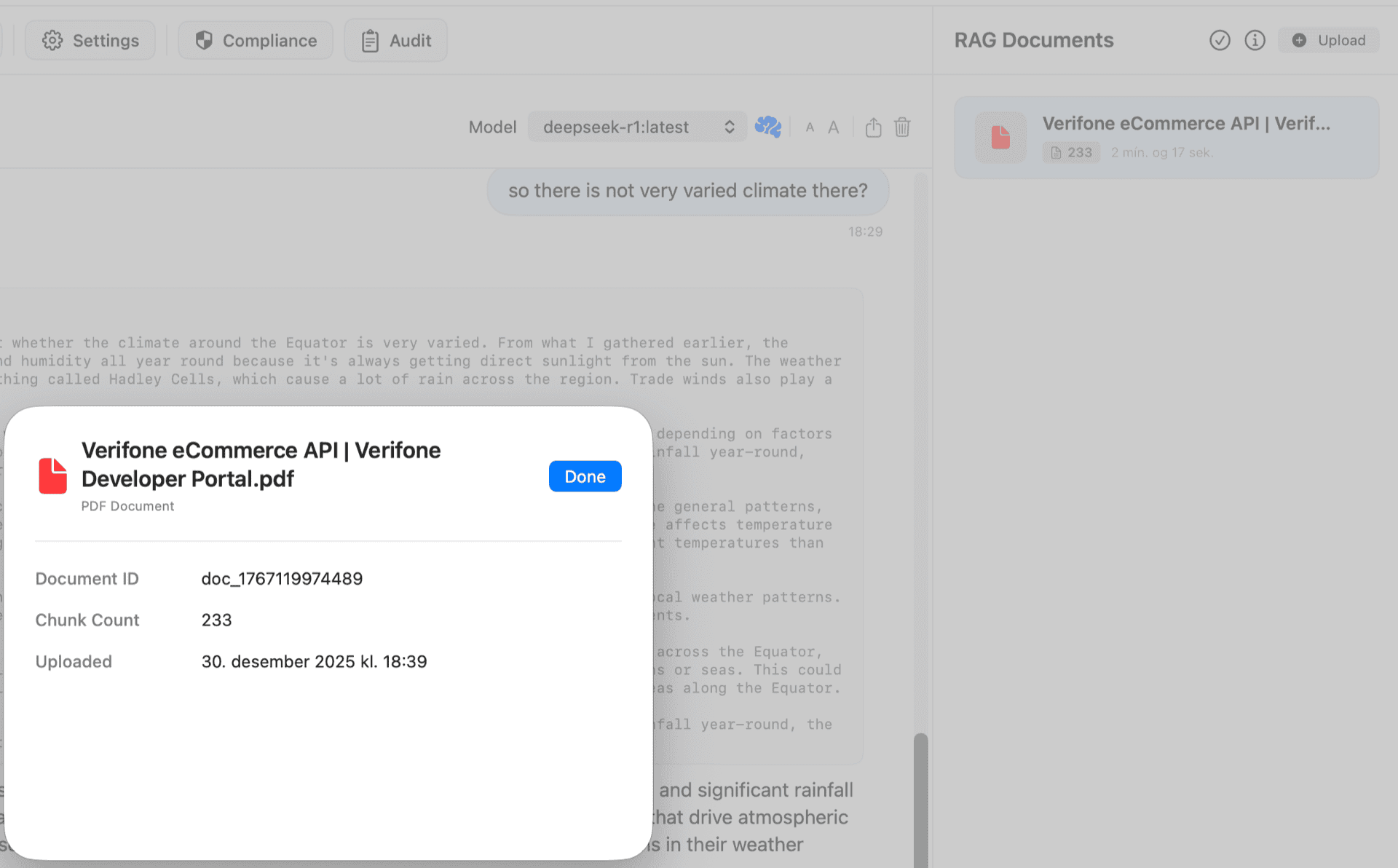
Click a document to see its details:
- Document ID - Unique identifier
- Chunk Count - Number of text chunks created
- Upload Date - When the document was added
- User - Who uploaded it (Multi-User mode)
Deleting Documents
To remove a document:
- Select the document in the list
- Click the Delete button (trash icon)
- Confirm the deletion
Bulk Selection
Use checkboxes to select multiple documents for bulk deletion.
Watch Folders Pro
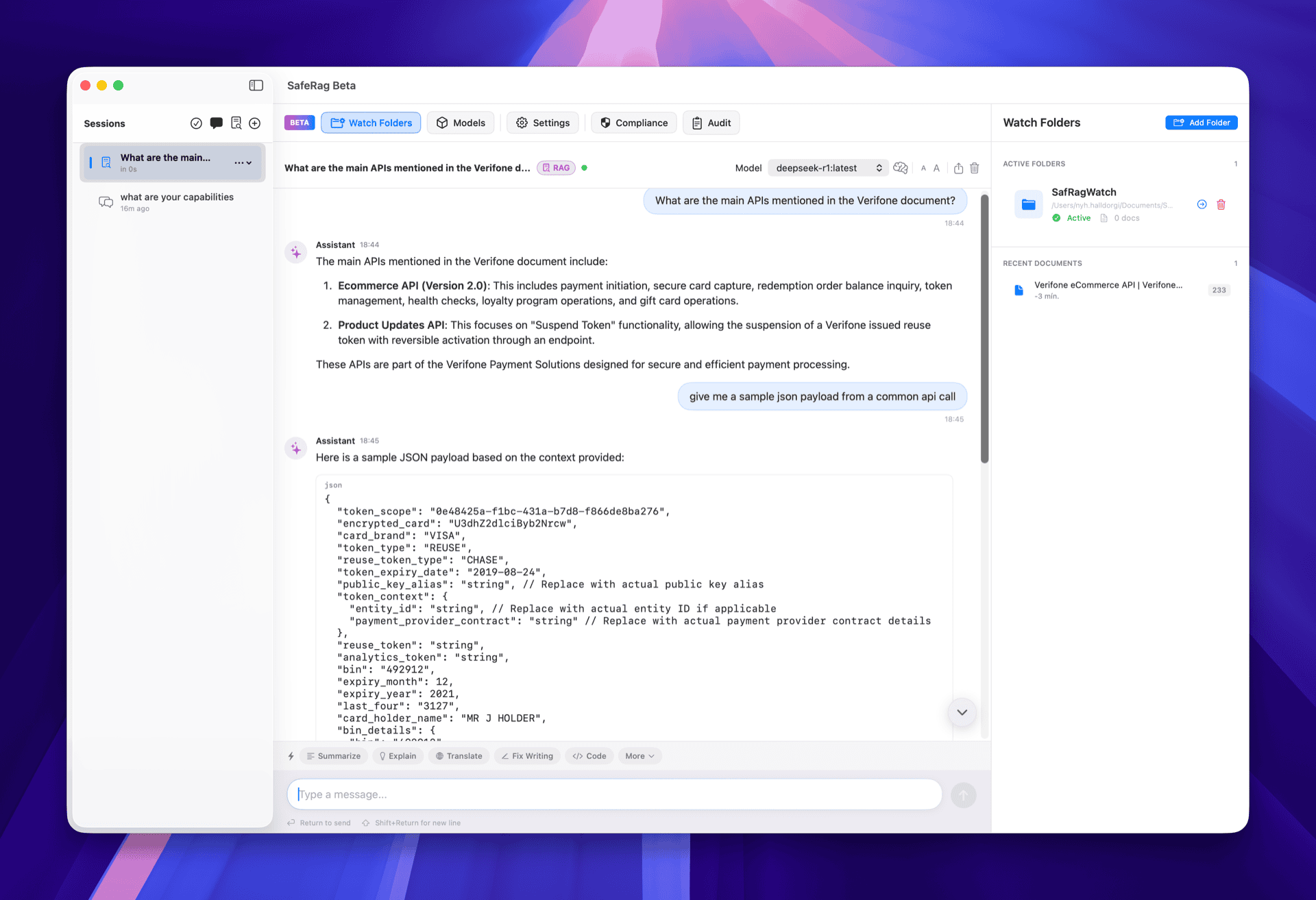
Watch Folders automatically index documents from specified directories. When you add or modify files in a watched folder, SafeRag updates your knowledge base automatically.
Adding a Watch Folder
Open Watch Folders Tab
In the Documents section, switch to the Watch Folders tab.
Add Folder
Click Add Folder and select a directory from your Mac.
Automatic Indexing
SafeRag begins indexing all supported documents in the folder.
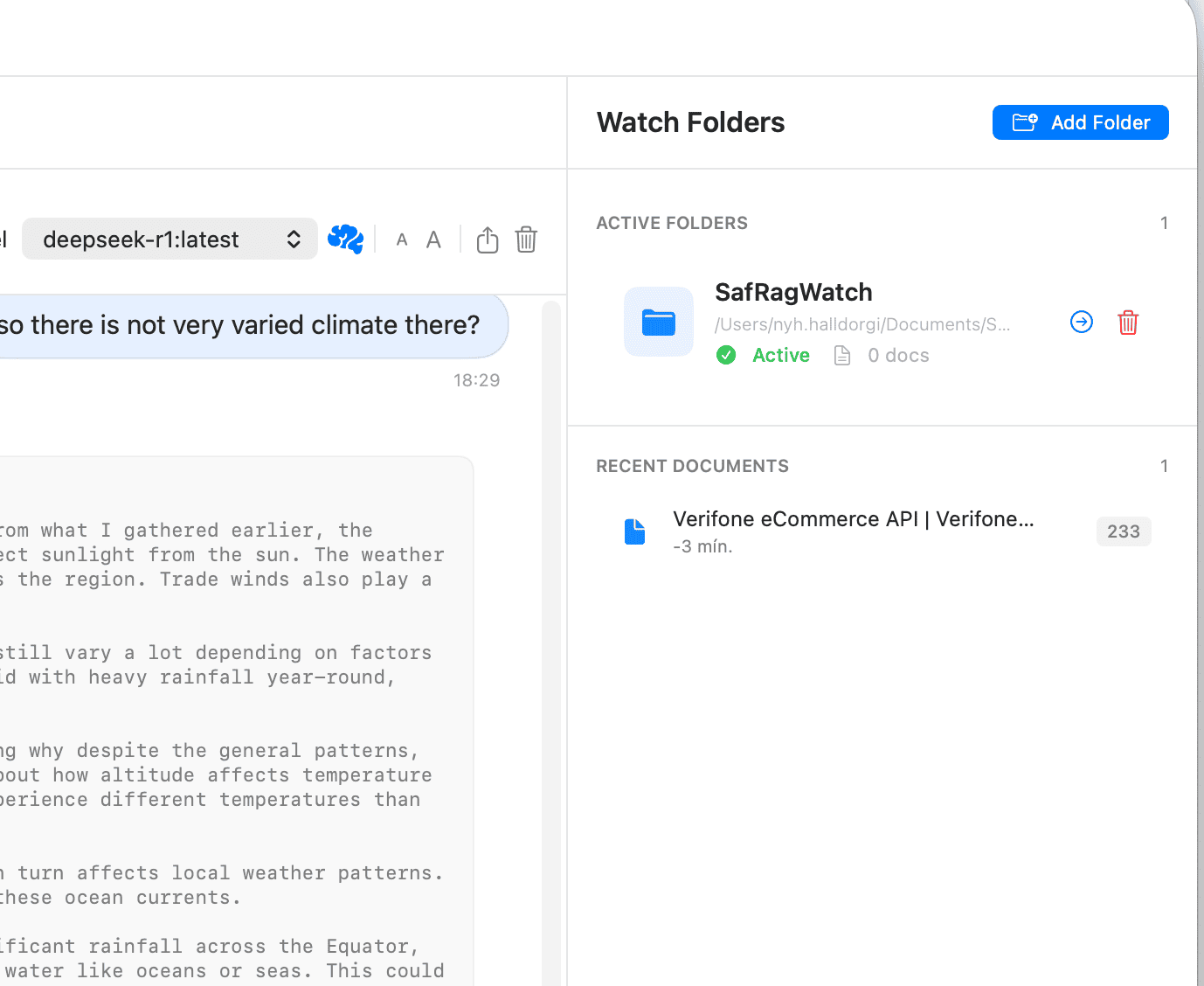
Watch Folder Features
- Status Toggle - Enable/disable watching without removing the folder
- Document Count - See how many documents are indexed from each folder
- Recent Documents - View recently added documents
Using RAG Mode
To chat with your documents:
Create a RAG Session
Create a new session and select RAG Mode from the mode picker.
Ask Document-Related Questions
Ask questions about your documents. For example: "What are the key points from the quarterly report?"
Review Responses
The AI will reference relevant sections from your documents in its response.