 Corixa
 SafeRag
Compliance & Security
SafeRag is designed with privacy and compliance in mind. Learn about GDPR and HIPAA compliance features, audit logging, and data security.
Why Local Processing Matters
SafeRag processes all data locally on your Mac. This architecture provides significant compliance benefits:
No Data Transfer
Your data never leaves your computer. No cloud servers, no third-party processors.
Data Residency
Data stays exactly where you want it - on your Mac, in your jurisdiction.
Full Control
You control all data lifecycle - storage, retention, and deletion.
Compliance Dashboard
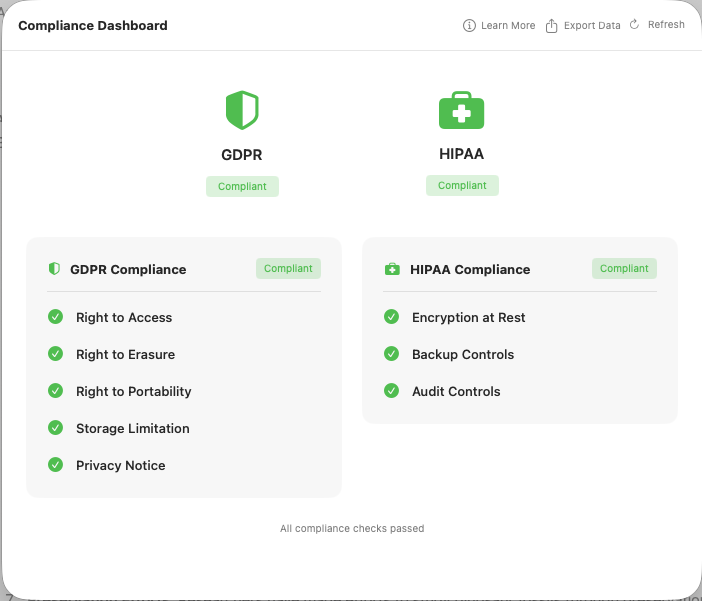
SafeRag includes a Compliance Dashboard that shows your current compliance status for GDPR and HIPAA.
Accessing the Dashboard
Open the Compliance section from the sidebar. You'll see status cards for:
- GDPR Compliance - European data protection requirements
- HIPAA Compliance - US healthcare data requirements
GDPR Compliance
The General Data Protection Regulation (GDPR) applies to organizations handling EU residents' personal data. SafeRag helps you comply with key GDPR requirements:
Article 5: Data Processing Principles
| Principle | How SafeRag Helps |
|---|---|
| Lawfulness | Data stays local - no third-party processing |
| Data Minimization | Retention policies automatically delete old data |
| Storage Limitation | Configurable retention periods |
| Integrity | Local storage with macOS security |
Article 15: Right of Access
Data subjects have the right to access their personal data. SafeRag Pro includes a data export feature:
Article 17: Right to Erasure
Data subjects can request deletion of their data. In SafeRag:
- Delete individual chat sessions
- Delete uploaded documents
- Delete entire user accounts (Admin)
- Use retention policies for automatic deletion
HIPAA Compliance
The Health Insurance Portability and Accountability Act (HIPAA) protects sensitive patient health information. SafeRag's architecture supports HIPAA compliance:
Key HIPAA Safeguards
| Safeguard | How SafeRag Helps |
|---|---|
| Access Controls | Multi-user mode with authentication |
| Audit Controls | Complete audit logging of all activities |
| Transmission Security | No transmission - data stays local |
| Integrity Controls | Local storage with backups |
Audit Logging Pro
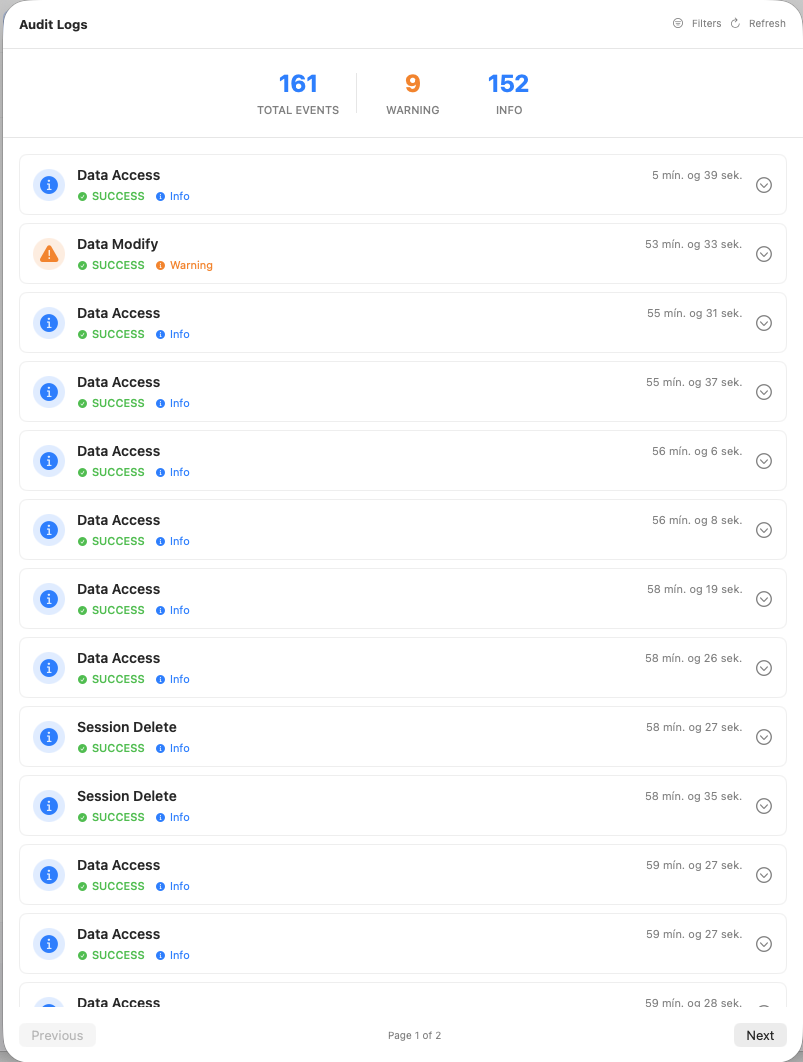
SafeRag Pro includes comprehensive audit logging that records all significant activities.
What's Logged
- User Activities - Login, logout, session creation
- Document Operations - Upload, delete, access
- Admin Actions - User creation, role changes, password resets
- System Events - Errors, warnings, configuration changes
Log Details
Each audit log entry includes:
- Timestamp - When the event occurred
- Event Type - Category of the event
- Severity - Info, Warning, Error, or Critical
- User - Who performed the action
- Details - Additional context
Filtering Logs
Use filters to find specific events:
- Filter by event type
- Filter by severity level
- Search by keyword
- Navigate with pagination
Data Export Pro
Export all user data for compliance requests or backup purposes.
How to Export Data
Open Compliance Section
Navigate to the Compliance area from the sidebar.
Click Export Data
Find and click the Export All Data button.
Choose Location
Select where to save the exported JSON file.
Review Export
The JSON file contains all user data including chat history and documents.
Export Contents
The export file includes:
- User profile information
- All chat sessions and messages
- Uploaded document metadata
- Account settings
Security Features
Local Storage
All SafeRag data is stored locally on your Mac:
~/Library/Application Support/SafeRagThis location benefits from macOS security features including:
- FileVault encryption (if enabled)
- App Sandbox restrictions
- macOS Gatekeeper verification
Authentication
In Multi-User mode:
- Password-protected accounts
- Password strength requirements
- Recovery codes for account recovery
No Network Dependencies
SafeRag functions entirely offline after initial setup. The only network activity is:
- Downloading AI models from Ollama's registry
- Optional crash reporting (if enabled)