 Corixa
 SafeRag
Onboarding Guide
When you first launch SafeRag, you'll be guided through a setup process. This guide explains each step of the onboarding experience.
Onboarding Overview
The onboarding process consists of several steps:
- Welcome Slides - Introduction to SafeRag features and privacy
- Account Setup - Enter your username (optional)
- Final Steps - Install Ollama and download an AI model
Welcome Slides
The first thing you'll see is a series of welcome slides introducing SafeRag's key features.
Slide 1: Welcome
A warm welcome to SafeRag with an overview of what the app does.
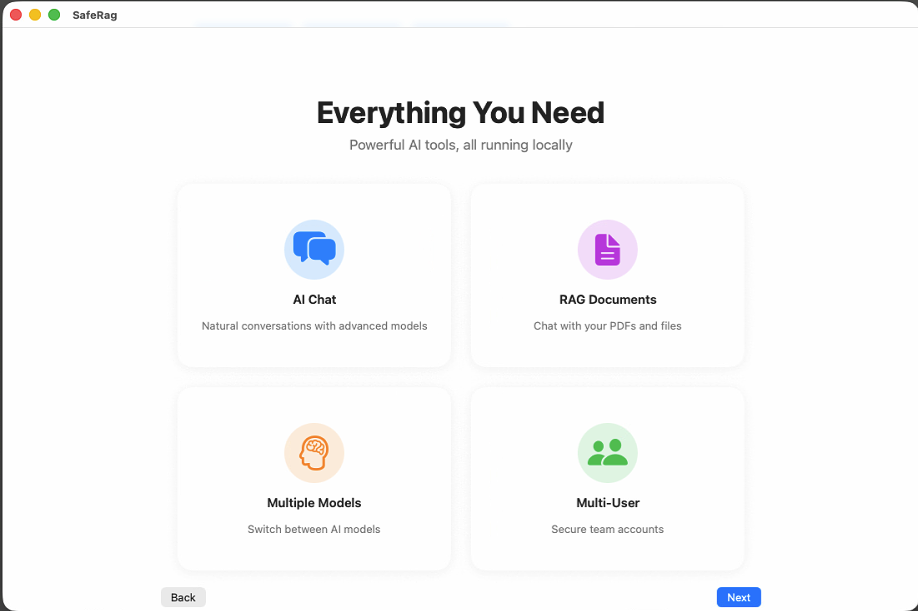
Slide 2: Your Data, Your Control
Learn about SafeRag's privacy features and how your data stays on your Mac. Military-grade AES-256-GCM encryption protects every message, with zero tracking and no cloud storage.
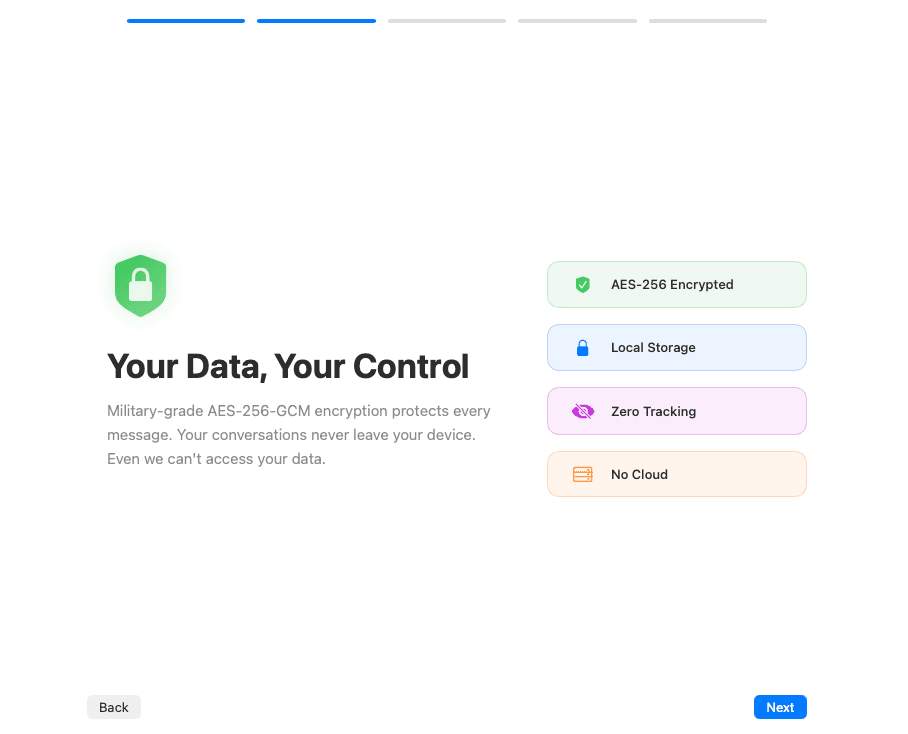
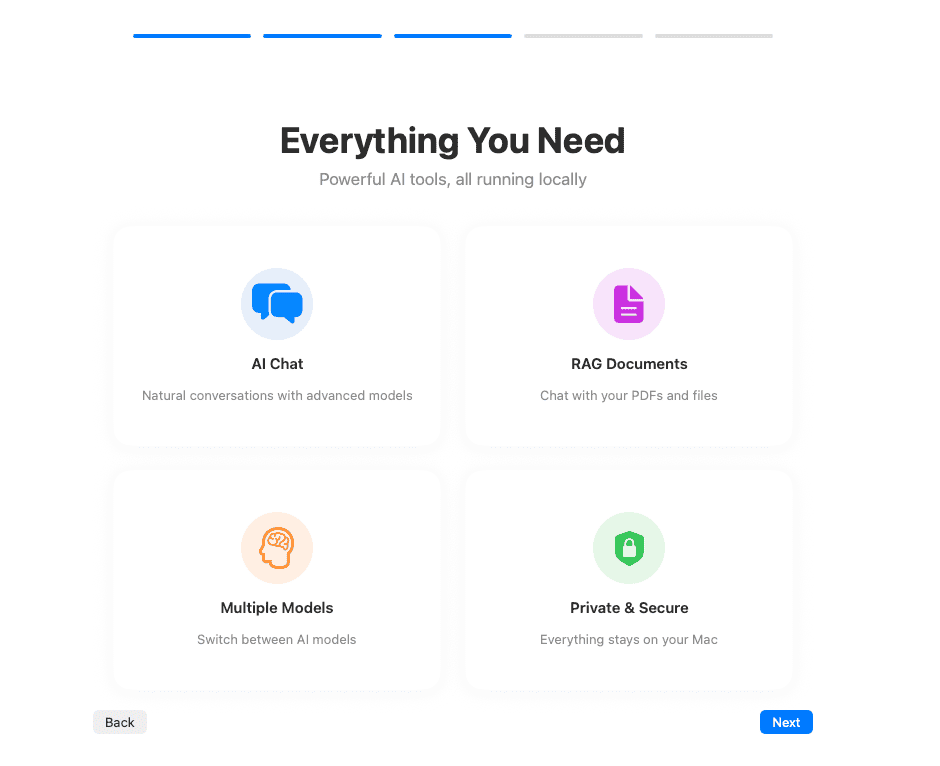
Slide 3: Everything You Need
Overview of the main features: AI Chat, RAG Documents, Multiple Models, and Private & Secure operation.
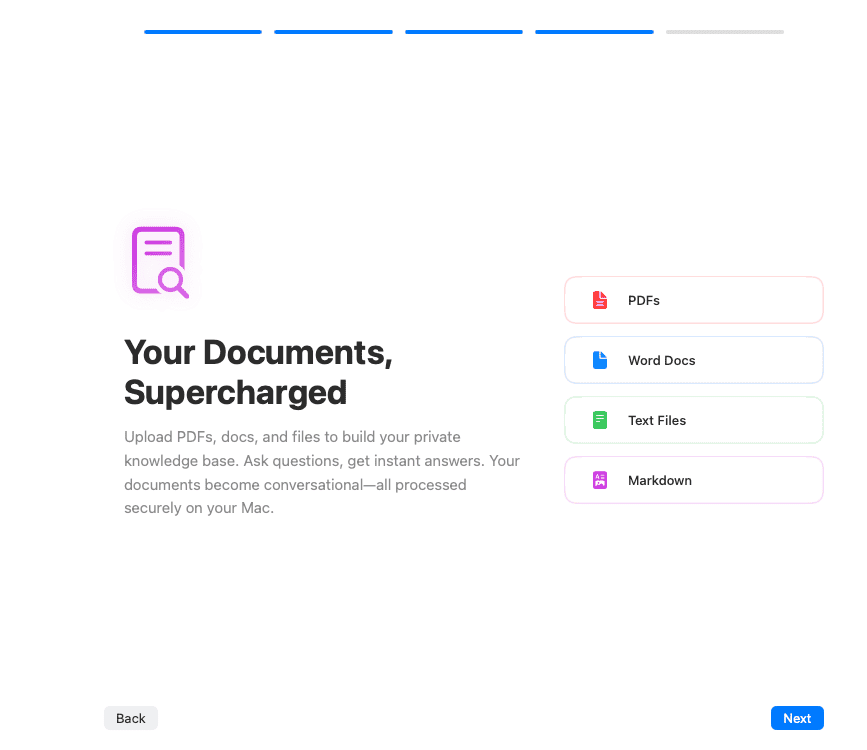
Slide 4: Your Documents, Supercharged
Information about document support and RAG capabilities. Upload PDFs, Word docs, text files, and Markdown to build your private knowledge base.
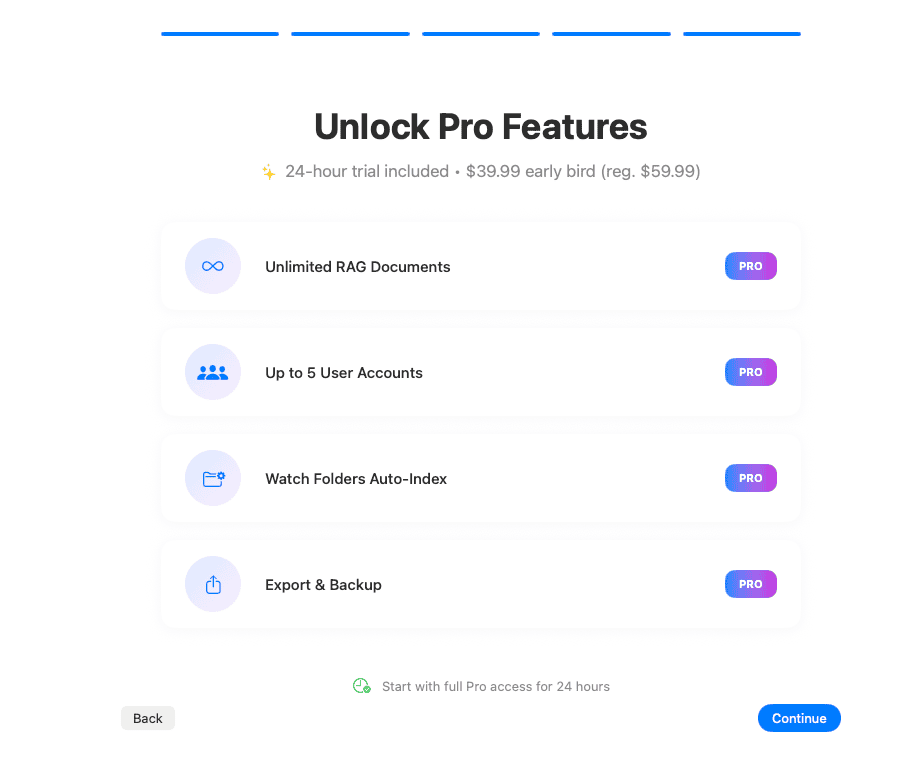
Slide 5: Pro Features Preview
A preview of Pro features available with a license or during the 24-hour trial period, including unlimited RAG documents, Watch Folders auto-indexing, and export capabilities.
Account Setup
After the welcome slides, you'll set up your account. This is quick and simple:
- Enter your username (optional) — leave blank to use your Mac username
- No password required — your Mac's security protects the app
- Click Continue to proceed
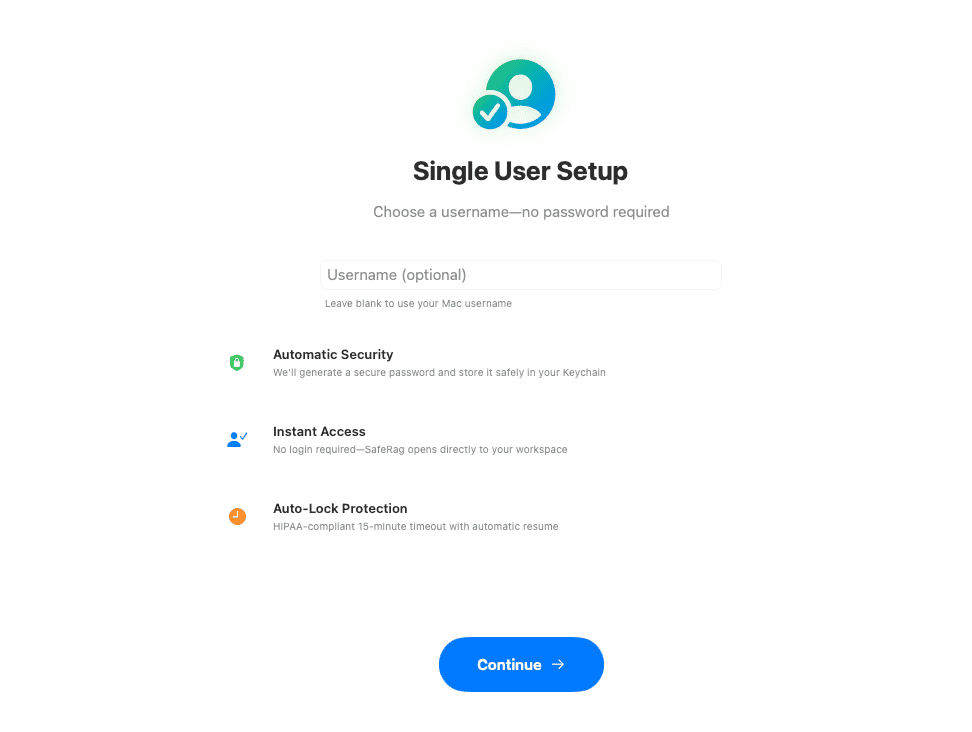
The Single User Setup offers several benefits:
- Automatic Security — A secure password is generated and stored safely in your Keychain
- Instant Access — No login required, SafeRag opens directly to your workspace
- Auto-Lock Protection — 15-minute auto-lock timeout (a HIPAA safeguard) with automatic resume
Final Steps
The final step downloads an AI model so you can start chatting.
1. Download an AI Model
You need at least one AI model to use SafeRag. The setup recommends starting with a model suitable for your Mac:
| Model | Size | Best For |
|---|---|---|
| Llama 3.2 3B | ~2 GB | Macs with 8 GB RAM, fast responses |
| Llama 3.2 8B | ~5 GB | Balanced performance and quality |
| Mistral 7B | ~4 GB | Good all-around model |
Click the model name to begin downloading. A progress bar shows the download status.
Onboarding Complete
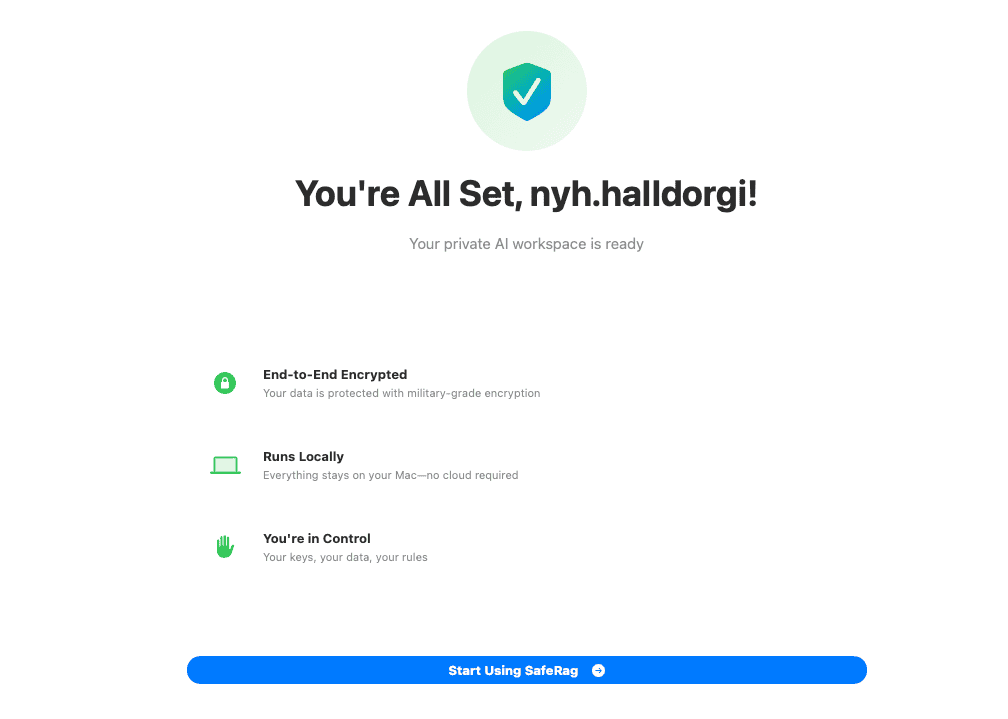
Once Ollama is installed and a model is downloaded, you'll see the completion screen. Click Get Started to enter the main SafeRag interface.
Free Trial
After onboarding, SafeRag starts a 24-hour free trial of all Pro features:
- Unlimited document uploads
- Watch Folders for automatic indexing
- Full audit logging
- Data export capabilities
A trial banner appears at the top of the window showing time remaining. When the trial ends, you can continue using SafeRag's free features or enter a license key to unlock Pro.
Next Steps
You're now ready to use SafeRag! Here's what to explore next: