 Corixa
YouTube Integration
Connect your YouTube account to sync playlists, track subscriptions, and organize all your video content in one place.
Overview
Corixa's YouTube integration lets you sync your entire YouTube library using just your free Google account - no YouTube Premium or paid subscription required.
With YouTube sync, you can:
- Sync Playlists - Automatically import videos from your YouTube playlists
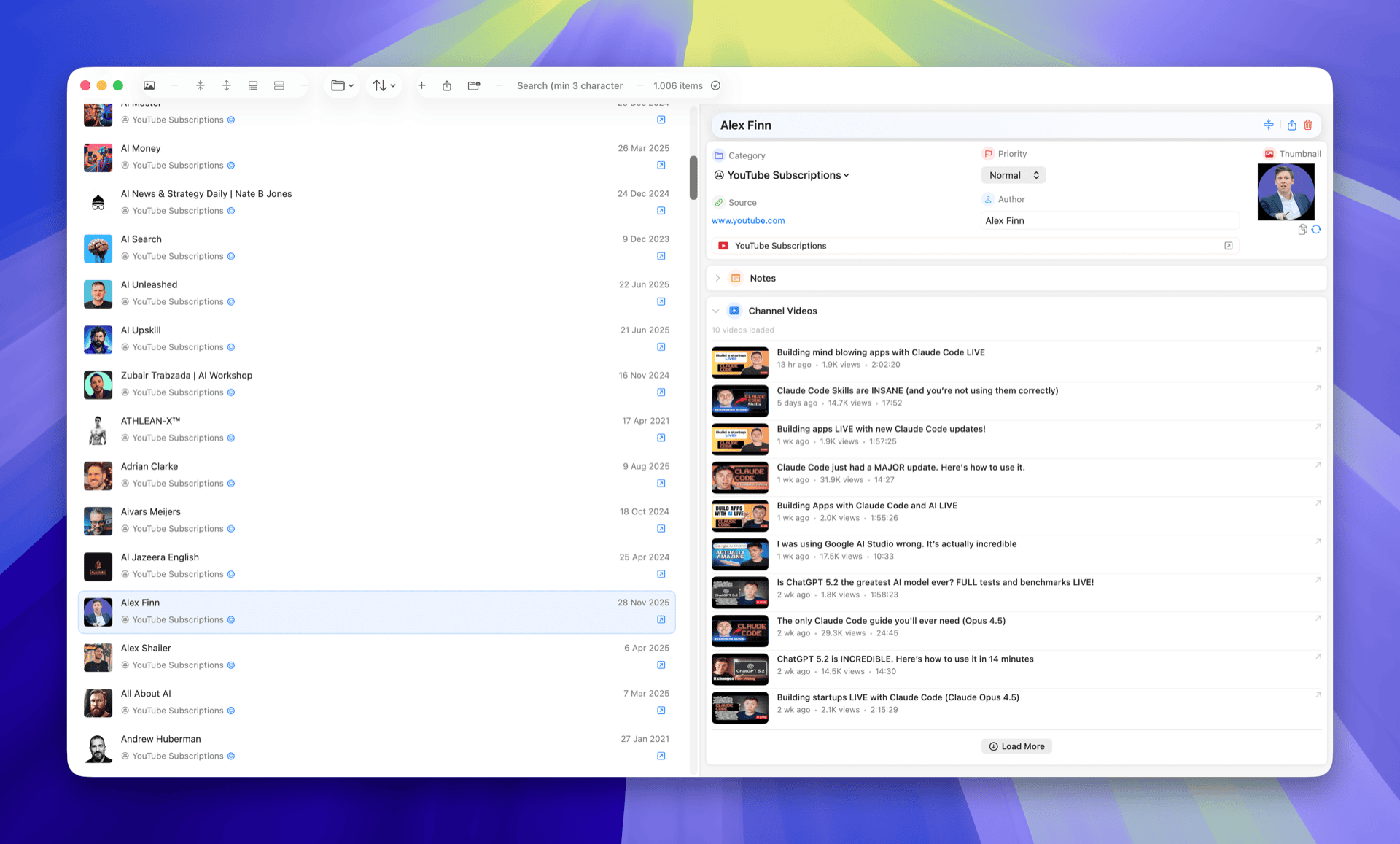
- Track Subscriptions - Keep a local record of channels you subscribe to
- Auto-Create Categories - Each playlist becomes a Corixa category
- Rich Metadata - Full video details including duration, thumbnails, and descriptions
- Offline Access - Browse your video library without an internet connection
Requirements
Before you can sync YouTube content, you'll need:
- A Free Google Account - The same account you use for YouTube, Gmail, or other Google services
- YouTube Content - At least one playlist or subscription on your YouTube account
- Internet Connection - Required during sign-in and sync (not needed to browse already-synced content)
Connecting Your YouTube Account
To use YouTube features, connect your Google account by following these steps:
Open YouTube Settings
Go to Corixa > Settings > YouTube, or click the YouTube icon in the toolbar.
Click "Connect YouTube Account"
Your default web browser will open to Google's sign-in page.
Sign In with Your Google Account
Enter your email address and password on the Google sign-in page. This is the same login you use for Gmail, YouTube, or Google Drive. If you're already signed in, you may see your accounts listed - select the one with your YouTube content.
Review and Allow Permissions
Google will show you what Corixa is requesting access to. You'll see permissions for viewing your YouTube playlists and subscriptions. Click "Allow" or "Continue" to grant access.
Return to Corixa
After you allow access, the browser will show a success message and you can close it. Corixa will automatically detect the connection. Your Google account name will appear in YouTube Settings, confirming you're connected.
Permissions Explained
When you connect YouTube, Corixa requests the following permissions:
| Permission | Purpose |
|---|---|
| View your YouTube playlists | Required to fetch your playlists and their videos |
| View your YouTube subscriptions | Required to sync your channel subscriptions |
Corixa only has read access to your YouTube data. It cannot:
- Modify or delete your playlists
- Post comments or likes
- Access your watch history
- Access private videos you don't own
Syncing Playlists
Once connected, you can sync your YouTube playlists to Corixa.
Initial Sync
Go to YouTube Settings
Navigate to Settings > YouTube.
Select Playlists to Sync
You'll see a list of all your YouTube playlists. Check the boxes next to the playlists you want to sync.
Start Sync
Click Sync Now to begin importing videos. Progress will be shown in the status area.
What Gets Synced
For each video in your selected playlists, Corixa imports:
- Title - Video title
- Thumbnail - High-quality video thumbnail
- Duration - Video length
- Channel - Channel name and link
- Description - Full video description
- Publish Date - When the video was uploaded
- URL - Direct link to the video
Automatic Category Creation
When you sync a playlist, Corixa automatically:
- Creates a new category with the playlist name
- Assigns an appropriate icon and color
- Places all videos from that playlist into the category
Sync Settings
Customize how YouTube sync behaves in Settings.
Auto-Sync
Enable automatic syncing to keep your Corixa library up to date with YouTube changes.
- On App Launch - Sync when Corixa starts
- Periodic Sync - Sync every few hours in the background
- Manual Only - Only sync when you click "Sync Now"
Sync Behavior
- New Videos Only - Only import videos added since last sync
- Update Metadata - Refresh titles, thumbnails, and descriptions for existing videos
- Remove Deleted - Remove videos that are no longer in the playlist
Subscription Tracking
In addition to playlists, Corixa can sync your YouTube channel subscriptions.
Syncing Subscriptions
- Go to Settings > YouTube
- Enable Sync Subscriptions
- Click Sync Now
Corixa will import information about channels you subscribe to, including:
- Channel name and thumbnail
- Channel description
- Subscriber count
- Direct link to the channel
Managing YouTube Content
Viewing Video Details
Click any YouTube video to see full details in the detail panel:
- Large thumbnail
- Full description
- Channel information
- Duration and publish date
- Quick actions (open in YouTube, copy link)
Opening Videos
There are several ways to watch a video:
- Double-click the video item to open in your default browser
- Click the Play button in the detail panel
- Right-click and select Open in YouTube
- Use the keyboard shortcut Cmd + O
Reorganizing Videos
YouTube videos can be moved to different categories just like any other item:
- Drag and drop to categories in the sidebar
- Use the category dropdown in the detail panel
- Right-click and select "Move to Category"
Duplicate Detection
Corixa intelligently handles duplicates when syncing YouTube content:
- Same Video in Multiple Playlists - Only one copy is stored, but it can appear in multiple categories
- Already Saved Videos - If you manually saved a video before syncing, Corixa recognizes it and updates the existing item
- Fuzzy Matching - Similar videos (same title, channel) are detected to prevent near-duplicates
Disconnecting YouTube
To disconnect your YouTube account:
Open YouTube Settings
Go to Settings > YouTube.
Click "Disconnect"
Click the disconnect button next to your connected account.
Choose What to Keep
Decide whether to keep your synced videos and categories or remove them.
Troubleshooting
Common Issues
Sync Takes a Long Time
Large playlists with hundreds of videos may take several minutes to sync. Progress is shown in the status bar.
Some Videos Are Missing
Private videos, age-restricted content, or videos removed from YouTube won't appear in your sync.
Authentication Expired
If you see an authentication error, try disconnecting and reconnecting your YouTube account.
Playlists Not Appearing
Only playlists you own or have saved appear in the list. Shared playlist links need to be saved to your YouTube account first.
For more help, see the Troubleshooting Guide.