Projects
Browse all your Claude Code projects, drill into session history, open projects in your editor, and organize them with favorites and groups.
Project List
The Projects view shows every project where you've used Claude Code. Each project entry displays:
- Project name and directory path
- Number of sessions
- Last active timestamp
- Active git branch (if applicable)
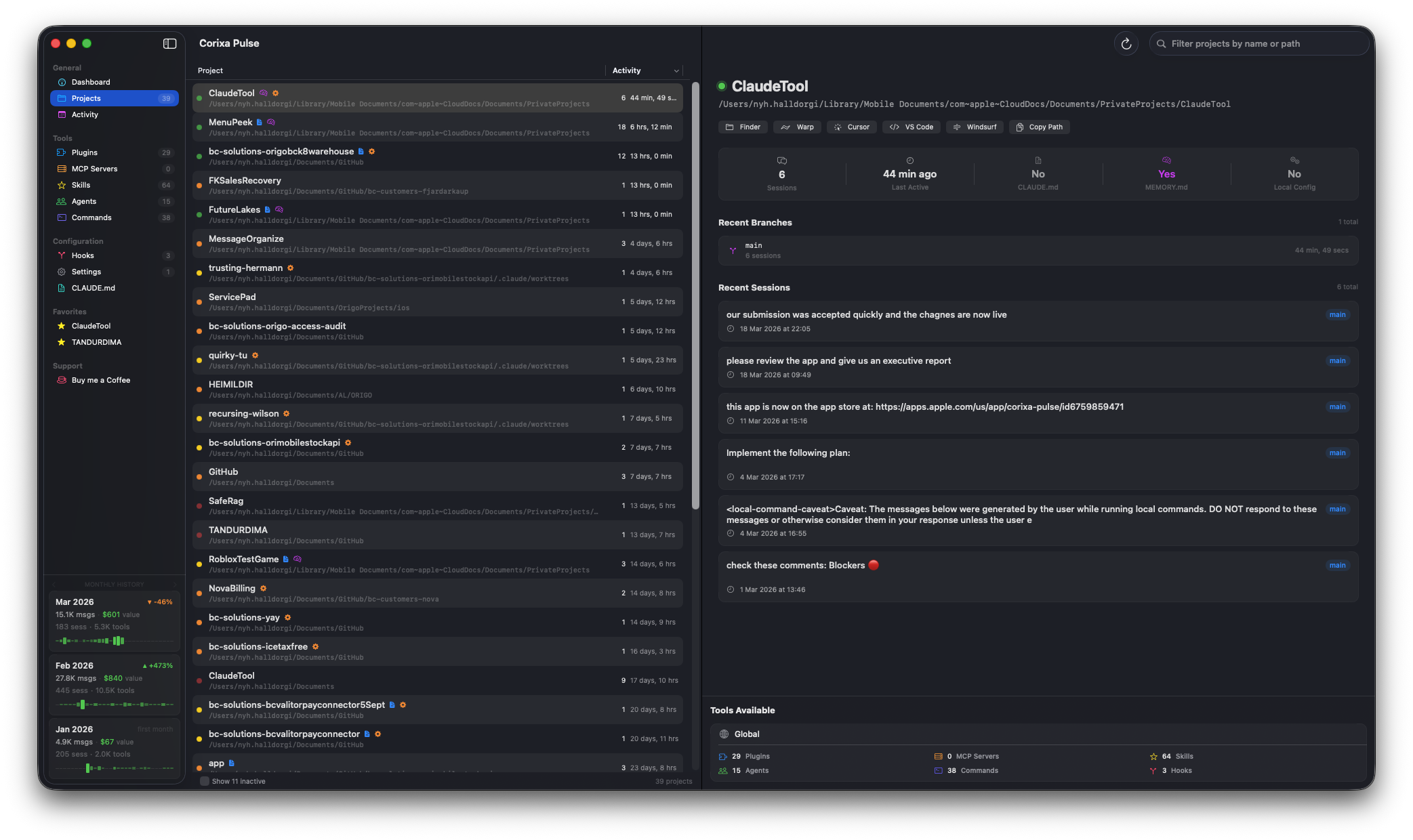
The Projects view with project list and detail panel
Sorting
Sort the project list by:
- By Activity — most recently used projects appear first (default)
- By Name — alphabetical sorting by project name
Project Detail
Click on any project to see its full detail view, including:
- Sessions — all Claude Code sessions for this project, ordered by recency
- Branches — which git branches were used in each session
- Last Active — when the project was last used with Claude Code
Session Browsing
Each session in a project shows:
- First prompt preview — the opening message of the conversation
- Timestamps — when the session started and ended
- Git branch — which branch was active during the session
- Message count — total messages in the session
Editor Integration
Open any project directly in your preferred code editor with one click. Supported editors:
Cursor
Open the project directory in Cursor.
VS Code
Open the project directory in Visual Studio Code.
Windsurf
Open the project directory in Windsurf.
Warp
Open the project directory in Warp terminal.
CLAUDE.md & MEMORY.md Quick Access
For each project, you can quickly view and access:
- CLAUDE.md — the project's Claude Code instructions file, if present
- MEMORY.md — the project's memory file used by Claude Code for context persistence
These files are displayed read-only. To edit them, use the Settings & Tools editors or open the project in your preferred editor.
Favorites & Groups
Organize your projects for quick access:
Favorites
Pin frequently used projects to the top of the list. Click the star icon on any project to toggle its favorite status. Favorited projects always appear at the top, regardless of sort order.
Groups
Create custom groups to categorize your projects:
- Create a group — give it a name and optional color
- Drag and drop — move projects into groups by dragging
- Collapse/expand — hide groups you're not actively working on
Tools Available per Project
See what Claude Code tools and integrations are configured for each project:
- Plugins — installed Claude Code plugins
- MCP Servers — connected Model Context Protocol servers
- Skills — custom slash commands and skills
- Commands — custom CLI commands
- Hooks — pre/post hooks configured for the project